

Password and expiration
Ask for a password before a link opens, or stop it on a date.
Both are on PRO and Business, in the Advanced section of the editor, under Organize. It opens by itself when a link already uses one of them.
Password
Turn it on
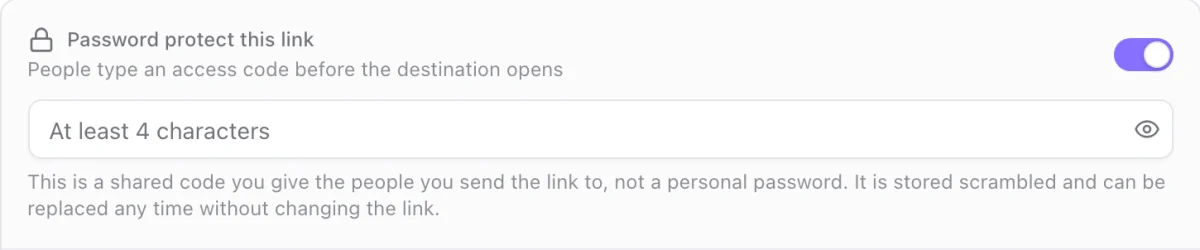
Open Advanced and turn on Password protect this link.
Set it
Type an access code of at least 4 characters, then save the link.
People type the code before the destination opens. It is stored scrambled and never shown again: a protected link reads Protected, with Replace to set a new one. Turning the switch off removes it when you save.
Expiration
Turn it on
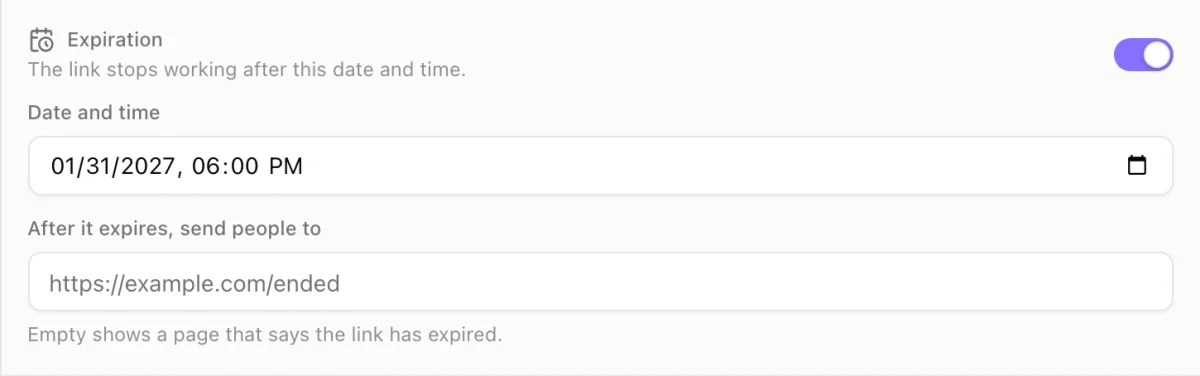
Open Advanced and turn on Expiration.
Pick the end
Choose the Date and time after which the link stops working. In After it expires, send people to, type an address, or leave it empty.
Save
Save the link. The date must be in the future.
After the end date, a click goes to the first of these that exists: the link's own address, the address set for its domain under Settings, Domains, or a page that says the link has expired. Expired clicks are not counted.
More in Advanced
Advanced holds a few more switches: Track conversions for this link (see Conversions), Link Cloaking shows the destination under your own domain instead of redirecting (PRO and up, only on a domain you own), Search engine indexing lets search engines list the link (off by default), and External and tenant ids label a link for your own systems.