

Themes
A theme restyles the whole KuikPage in one tap. Your blocks, words and photos stay as they are.
Switch the inspector to KuikPage. The Theme card at the top shows the look the page has now, its fonts and its colors. Change theme opens the themes in that same column, with a back arrow to the settings, so the phone and the page outline stay in view.
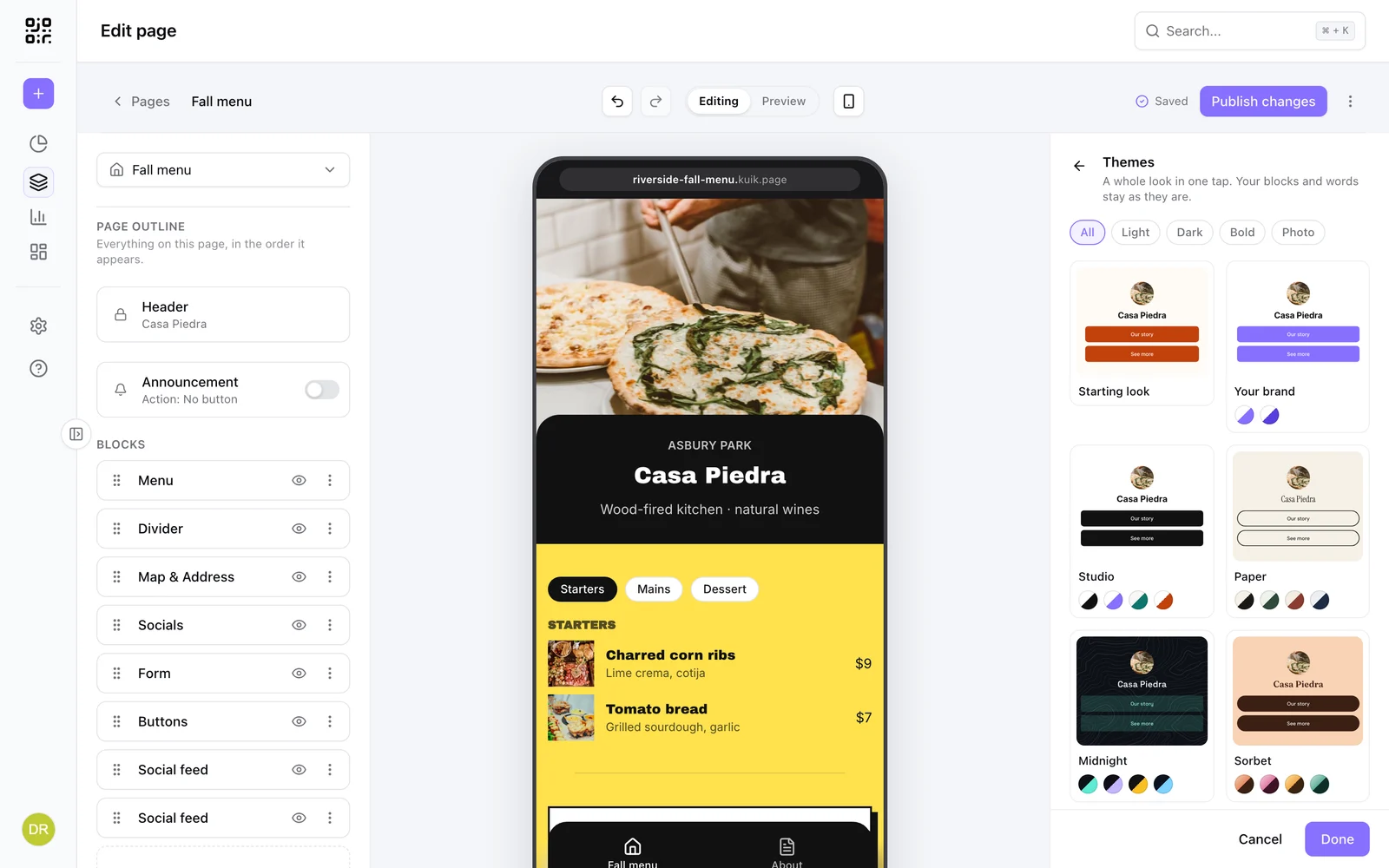
Picking a theme
Each card is your own page in that look: your header photo or logo, your name and your first two buttons. Point at a card to see the whole page on the phone, and click it to apply it. The dots under a card are its four color sets; click one to apply the theme in those colors.
All, Light, Dark, Bold and Photo narrow the list. Cancel puts back the look the page had when you opened the themes, and Done keeps what you applied. A theme you apply is one step in the editor's undo, and the message that confirms it has its own Undo.
What a theme sets
A theme sets every part of the look at once: background (a color, a gradient or a photo, with or without a texture), accent and text color, block tone, the title and text fonts, title weight, button corners, edge and fill, block corners, shadow style and strength, border and spacing. Every theme runs the page edge to edge, at the narrowest side margins.
It never changes your blocks or their order, your words, photos and links, the header's layout, the menu, the page language, Animate on scroll or Show the KuikCode. Colors you set on a single block stay too.
The themes
Studio, Paper, Midnight, Sorbet, Lilac Haze, Clay, Poster, Botanic, Arcade, Coast, Riso, Atelier, Neon, Linen, Citrus, Noir, Bloom, Ocean, Terminal, Candy, Dusk, Kraft, Editorial, Retro, Sage, Mocha, Pop, Velvet, Frost and Nightfall, each with four color sets. When your workspace has a Brand Kit (PRO), Your brand comes first: a clean look in your brand's colors and fonts.
The first time you open the themes on a page with its own look, such as a page made from a template, Starting look is there too, so that look is always one tap away while you try others.
After a theme
Every setting in the KuikPage panel stays below the Theme card, showing the theme's values, and you can change any of them. Once you do, the card reads Customized, and Reset puts the theme's look back. The theme's color dots stay on the card, so you can switch its colors without opening the themes again.
Themes are on every plan. Changes reach the live page the next time you publish.
From an assistant or the API
An assistant connected to KuikCode, and the API, apply a theme with the applyTheme operation: themeId (studio, paper, midnight, sorbet, lilac-haze, clay, poster, botanic, arcade, coast, riso, atelier, neon, linen, citrus, noir, bloom, ocean, terminal, candy, dusk, kraft, editorial, retro, sage, mocha, pop, velvet, frost or nightfall) and an optional palette from 0 to 3.