

KuikCode app for Zapier
Send scans and KuikPage form leads to thousands of apps, and create or repoint KuikCodes from a spreadsheet, a store or a CRM, with the KuikCode app for Zapier.
The KuikCode app for Zapier connects your workspace to the apps you already use, with no code. A new lead on a KuikPage can land in your CRM, a scan can post to a Slack channel, and a new product in your store can get its own KuikCode, with the PNG saved to Google Drive.
| Where | Zapier, search for KuikCode when you pick an app |
| Plan | PRO and up |
| Sign in | Once, with your KuikCode account; pick the workspace Zapier may use |
Connect your workspace
- In a Zap, pick KuikCode as the app and choose a trigger or an action.
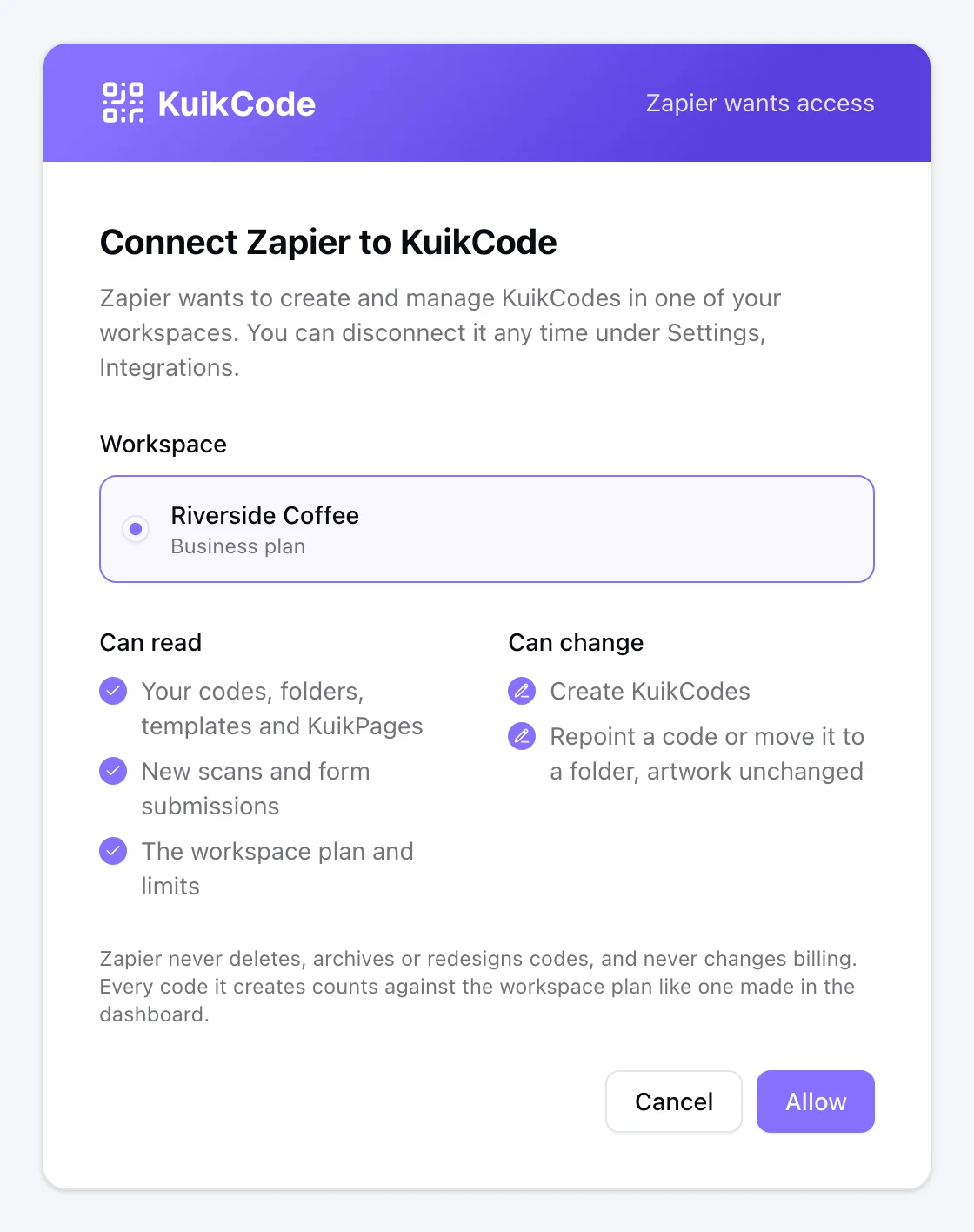
- Zapier asks you to sign in to KuikCode. Pick the workspace, review what Zapier may do and click Allow. Only workspace owners and admins can connect Zapier, and the workspace has to be on PRO or higher.
- Back in Zapier, the connection is named after your workspace. Every Zap you build with it acts in that workspace.
Triggers
| Trigger | Fires when | Narrow it to |
|---|---|---|
| New Scan | Someone scans one of your KuikCodes | One code, or the codes in one folder |
| New Form Submission | A visitor sends a form on one of your KuikPages | One KuikPage |
| New KuikCode | A code is created in the workspace, from the dashboard, the API, Canva or Zapier | One folder |
Each scan arrives with a one-line summary, such as "Spring menu scanned in London, United Kingdom", ready for a Slack message or an email subject. It also carries the code's name and id, the city, region and country, the device, operating system and browser, where the scan was sent and a visitor id that repeats when the same device scans again. A form submission arrives as "Form sent on" plus the page name, with the answers keyed by your field labels, so Name and Email map straight into a CRM.
Zapier checks for new scans, submissions and codes on its own schedule, from every minute to every 15 minutes depending on your Zapier plan. Each item reaches your Zap once.
Actions
| Action | What it does |
|---|---|
| Create KuikCode | Creates a dynamic code that opens a website or one of your KuikPages. Pick a design template, a folder and tags. The step hands back the code's scan link and its artwork as a PNG file for the next step |
| Update Destination | Points a printed code somewhere new: another website or a KuikPage. The artwork does not change |
| Move KuikCode to Folder | Files a code in a folder, or leave the folder empty to take it out of every folder |
Find KuikCode searches your codes by name. Turn on Find or Create in a Zap and it creates the code when no match exists, so a spreadsheet row that runs twice does not make two codes.
Codes created from Zapier count against your plan like any other, and show in the dashboard, where you can change their design, set smart rules or download other formats.
Zaps to start with
- Leads to your CRM. New Form Submission on your event KuikPage, then create a contact in HubSpot, Salesforce or a Google Sheet with the Name and Email answers.
- A code for every product. New row in Google Sheets (or a new product in Shopify), then Find or Create KuikCode with the product page as the destination, then upload the PNG to Google Drive.
- Scans in Slack. New Scan on your trade-show folder, then post the code name and city to your team channel.
- Repoint when a campaign ends. A date in Google Calendar, or a row marked done in Airtable, then Update Destination to the next campaign's page.
What Zapier cannot do
Zapier can read your codes, folders, templates, KuikPages, scans and form submissions, create codes, and change a code's destination or folder. It cannot delete or archive codes, change their design, name or tags, set webhooks or access codes, or touch billing. The limit is enforced by KuikCode, not only shown on the consent screen.
Disconnecting
Every Zapier connection is listed under Settings, Integrations in the dashboard with a Zapier label. Disconnect ends Zapier's access on its next request; the Zaps using it stop until you reconnect. Codes Zapier created stay.
Under the hood
The app uses the same REST API as every integration, through the OAuth server that also powers the MCP server and the Canva app. The connection is a hidden API key scoped to the workspace you allowed.