
Designing a code
Every control of the design step, section by section, with a scannability check on every change.
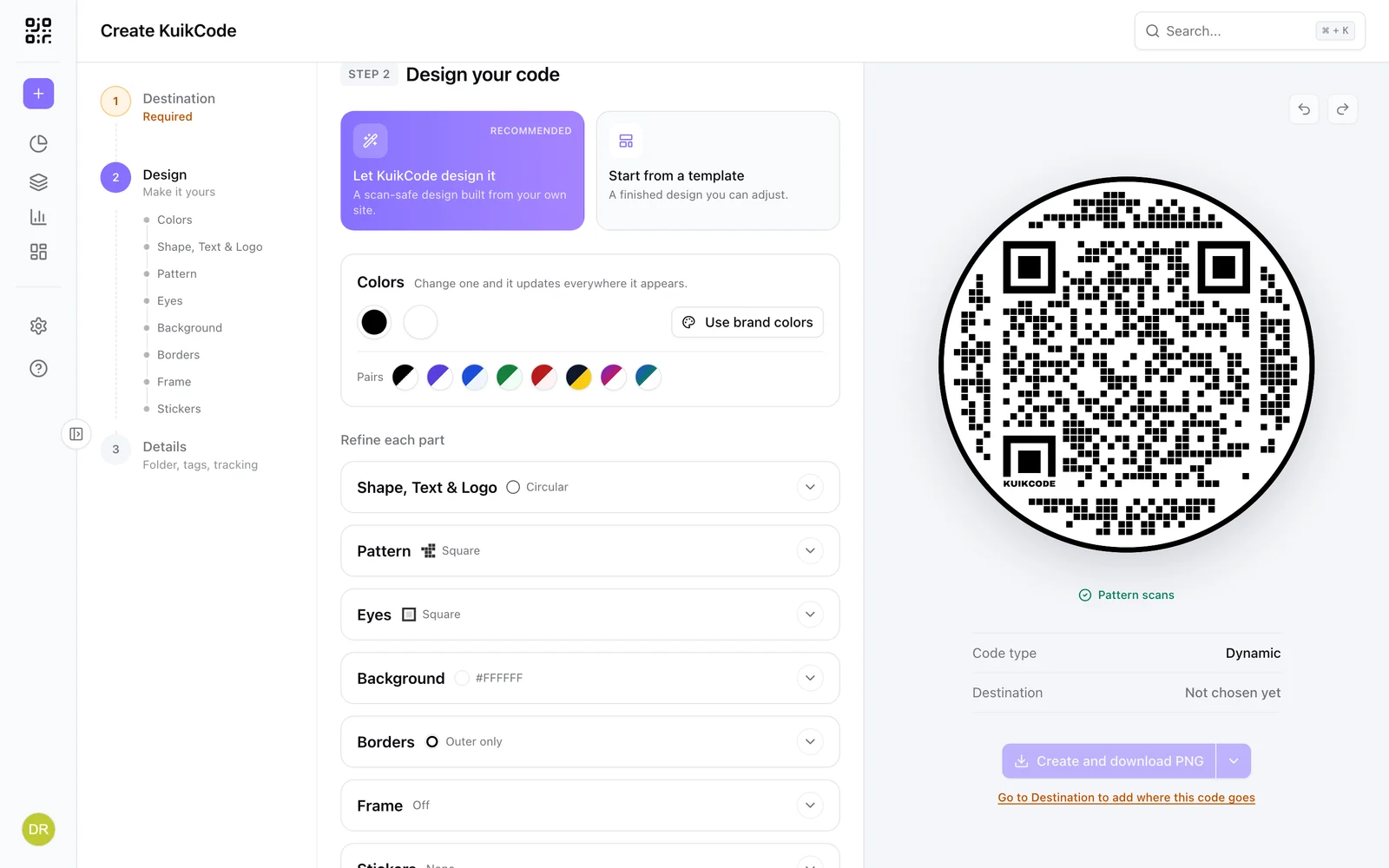
Step 2, Design your code is a live preview, the Colors card and seven sections under Refine each part: Colors changes the whole design at once, each section edits one piece of it. The step rail on the left lists them and jumps to them. Closed sections show their current value beside the title, with a small preview: the dot or eye shape, the background color or photo, the frame fill, the first stickers, and changing anything repaints the preview at once. Nothing in this step is plan-gated except the two shortcuts and the upload size.
Undo and Redo, at the top right of the preview (Cmd+Z and Shift+Cmd+Z, Ctrl on Windows), step back and forward through your design changes. A slider drag, a dragged gradient stop, an Auto Design or a template counts as one step. They cover the design only: the destination and the details keep their own fields, where Cmd+Z undoes your typing. History starts fresh each time you open a code.
Two shortcuts
On a code that already exists the two cards restyle it rather than start one, so they read Let KuikCode redesign it and Apply a template, without the Recommended tag. Either way the scan link stays the same, so printed codes keep working.
Let KuikCode design it
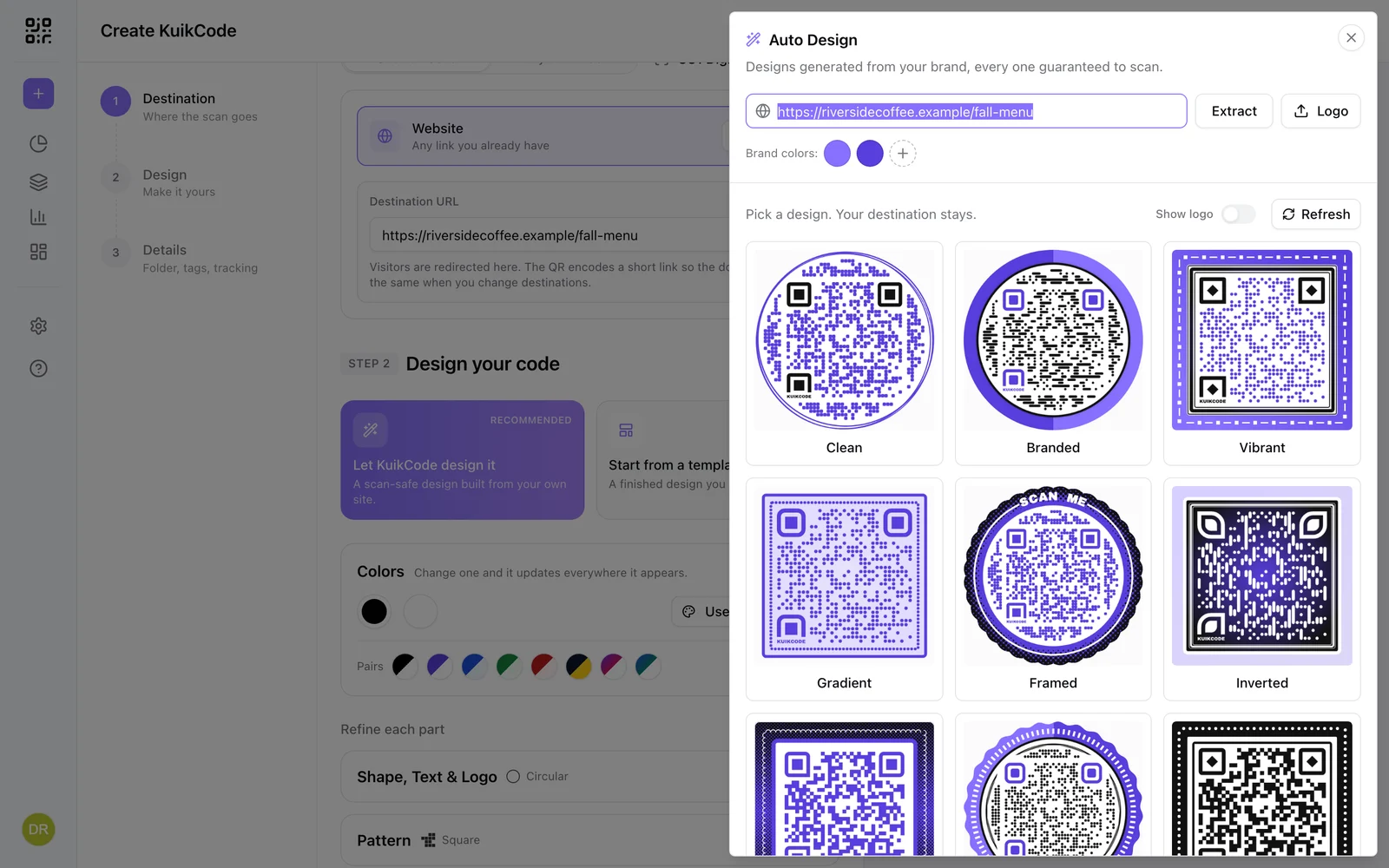
Auto Design reads a website and proposes finished designs in its palette, every one checked to scan. Paste the site address and click Extract (or upload a logo), review the brand colors it found (click one to replace it, hover for the trash to remove it, + to add one), and pick from the variants: Clean, Branded, Vibrant, Gradient, Framed, Inverted and more. About one in nine designs comes with a light frame Texture, Multiply in a darker brand color or black, and never one that would dim the words on the band. Refresh rolls a new set; Show logo toggles the logo in the middle. Each variant is a complete design: applying one replaces the current look and keeps your destination, typeface and any center text. Auto Design sets colors, pattern, eyes, borders and frame, including the frame's text size, the size of its repeating shapes and, now and then, a halftone band in two of your palette colors. It uses the newer styles too: the Pills, Columns, Blocks and Circuit patterns, the Star center, the Petal and Leaf eyes, the Sketch, Ribbon, Wave and Swell borders, and the Swell and Ribbon edges. Patterns that scan less reliably, such as Liquid, are left for you to choose. It never picks Glossy or a glow and never adds stickers. When your design already has stickers, Keep stickers (on by default) carries them onto every variant that has a frame, together with your Backdrop behind the code, recolored to each variant's background so the data stays readable. Turn it off to see and apply the variants without stickers.
Start from a template
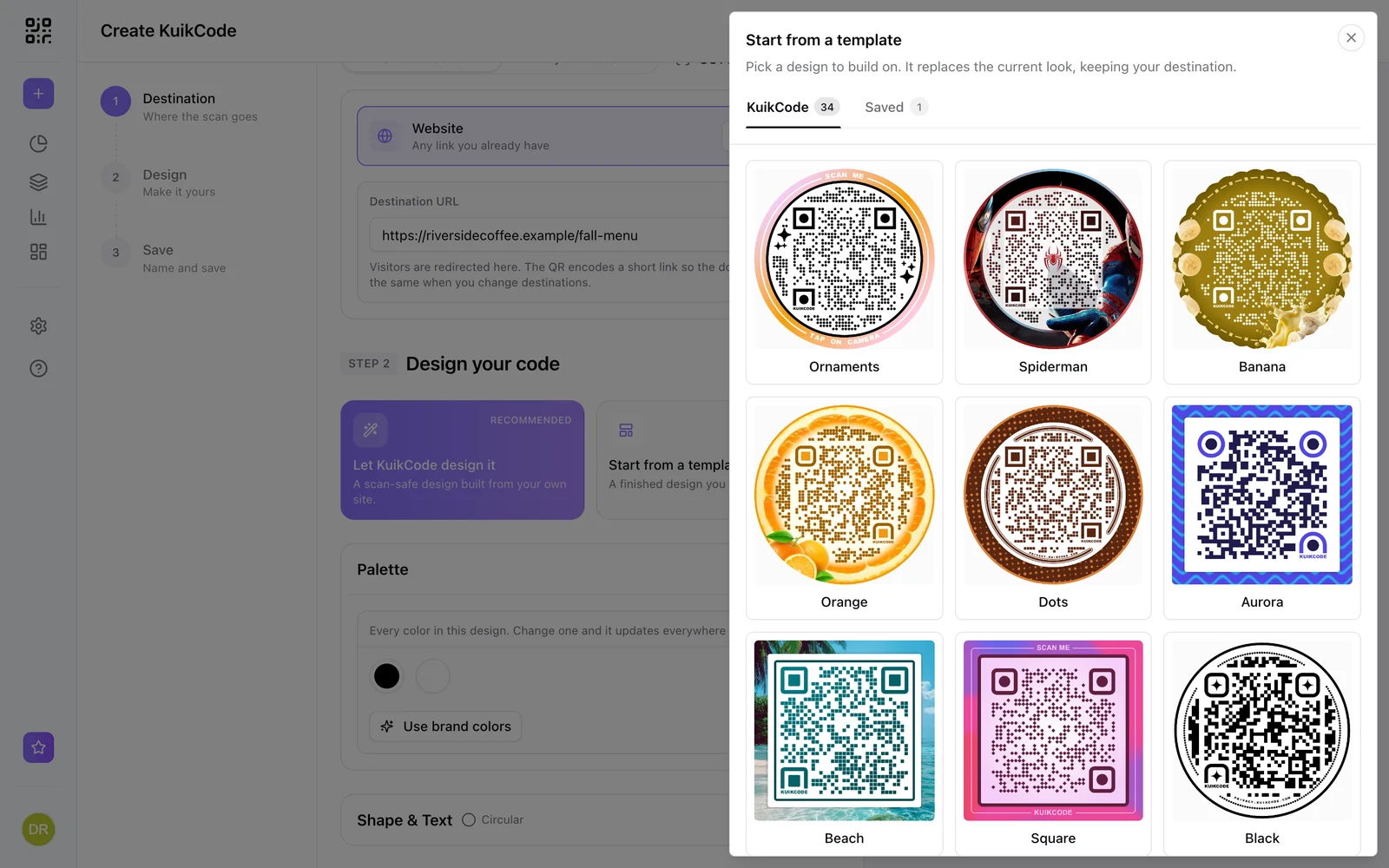
The template gallery has two tabs: KuikCode, the house designs, and Saved, the templates your team stored. Pick one and it replaces the design, destination untouched. PRO templates carry a badge on plans without them.
Keyboard
Every control in this step works from the keyboard. Section headers open and close with Enter and say whether they are open. A color swatch opens its picker with Enter, with the cursor already in the hex field: type a hex and press Enter to apply it, or Escape to close, and focus goes back to the swatch. The handles on a gradient bar move with the arrow keys (Shift moves 10% at a time, Home and End go to the ends). Upload areas take focus with Tab and open the file picker with Enter or Space, and the format list under the download button moves with the arrow keys.
Colors
Always open at the top of Step 2: every color the design renders, as swatches, with a tooltip naming what each one paints (Pattern, Eyes, Background, Borders, Frame, Frame tint, Frame text, Frame ring). Change a swatch and it updates everywhere it appears, so recoloring a whole design is a few clicks. Use brand colors (PRO) maps your Brand Kit's palette onto the design, darkest to darkest, leaving whites, blacks and greys alone. On Basic and Core the button shows a PRO badge and opens the plan comparison. The undo arrow steps back through the last thirty changes and the clock returns to the colors you started from; both appear after your first change, and hovering names them. A design whose colors come from photos says so here and points you to the sections below.
Pairs, the row of round swatches under the colors, are ready color schemes: dots on a background, two of them with gradient dots. Each one sets the dots, the eyes (they follow the dots) and the background in one click, and every pair has a contrast of 4.5:1 or better, so none of them raises a scan warning. Undo takes a pair back like any other change. Hover a swatch to see its name.
Shape, Text & Logo
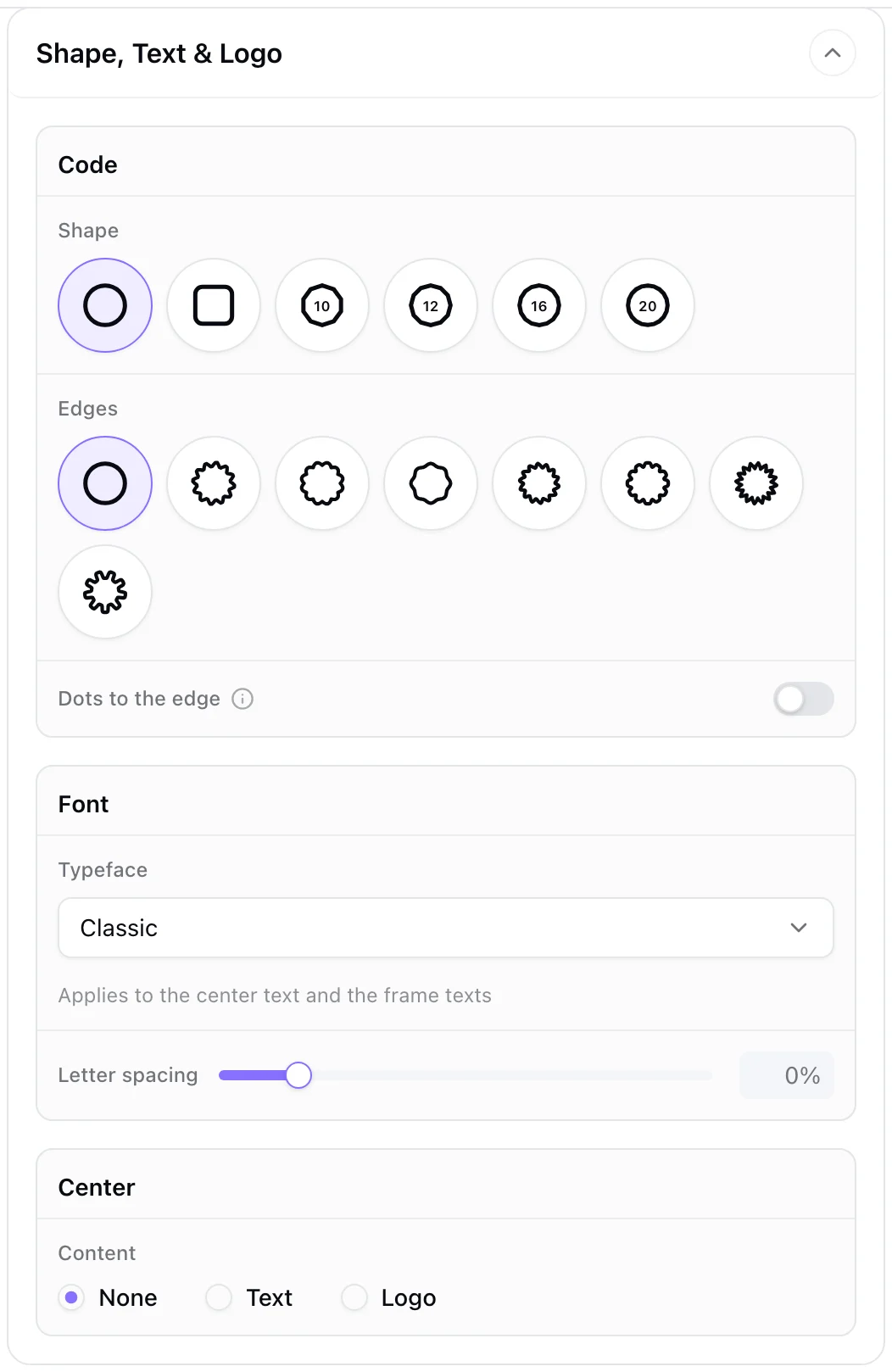
- Shape: Circle, Square, or a polygon with 10, 12, 16 or 20 sides (each polygon tile shows its side count). The more sides, the closer the outline comes to a circle.
- Edges (circle and square): Clean, Wavy, Scallop, Swell, Ribbon, Stamp, Pinking or Gear. Swell rolls the outline in slow swells, two to a side; Ribbon gives it the leaning, rounded teeth of a twisted ribbon's outline. With a shaped edge, Border follows edge shape makes the background and outer border trace the bumps.
- Dots to the edge (circle and polygons): the dots around the code run right up to the outer border, or to the edge when there is no border, cut cleanly along it, instead of stopping short. With the inner border on, the dots stop at that ring, so the switch is hidden.
- Font: the Typeface used for the center text and the frame texts, from a searchable list of about ninety faces plus Classic and your Brand font. Letter spacing (-10% to 60%) opens or tightens those texts; every face is spaced by its own letter widths, so a narrow face like Bebas Neue sits as snugly as Classic.
- Center: None, Text (up to 15 characters, "SCAN ME" by default) or Logo. The logo picker offers social network marks (Facebook, Instagram, X, LinkedIn, YouTube, WhatsApp, Telegram, Snapchat, Pinterest, TikTok, Threads, Maps) in Color or Black, or your own file: upload (raster files get a Crop logo step), Choose from library, or Use brand logo. Remove background offers Quick remove for solid backgrounds and AI remove for photographs. Upload a PNG with transparency for the cleanest result; the size cap follows your plan (2 MB on Basic, 5 MB on Core, 10 MB on PRO, 20 MB on Business) and is shown under the picker. The bin on your logo's tile removes it at once, with Undo in the message that appears.
Pattern
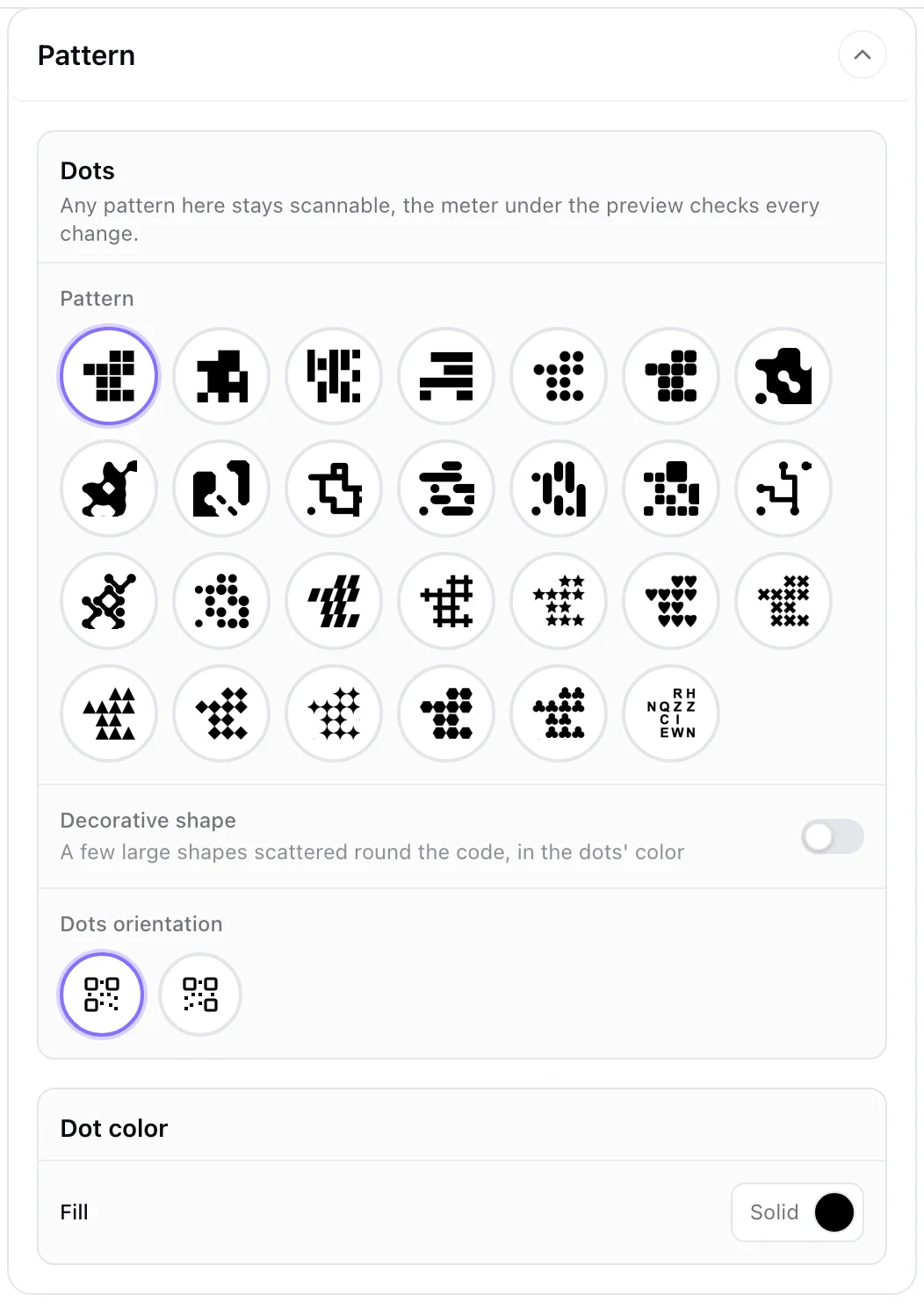
- Pattern: Square, Mesh Square, Vertical and Horizontal Rectangle, Circle, Rounded, Liquid, Metaballs, Chisel, Lines, Pills, Columns, Blocks, Circuit, Diagonal, Bubbles, Skew, Plus, Star, Heart, X, Triangle, Diamond, Four-Point Star, Hexagon, Clover and Random Character. Liquid melts neighboring modules into flowing shapes: a lone module is a round dot, a run is a pill, and the inside of every bend is curved, while each module's center stays where a scanner looks for it. On round and polygon codes the dots around the code melt together the same way. Metaballs turns every module into a soft ball and lets neighbors melt together, side by side and diagonally, into gooey splats; a light module's center always stays clear, and the splats keep away from the logo, the eyes and any text. Chisel follows Liquid's rules with straight cuts: open corners are cut at 45 degrees, the inside of every bend gets a small triangle, and a lone module becomes a seed, a small capsule laid along the diagonal. Lines joins the centers of neighboring modules with rounded lines, so the code reads as a maze of strokes, and a lone module is a dot; the lines are just over half a module thick, which keeps them scanning like the classic patterns. Pills turns every run of modules in a row into one rounded capsule, and a lone module is a round dot; Columns does the same down each column. Blocks merges each group of four dark modules into one bigger rounded tile and keeps the rest as small rounded squares, so the code reads like a mosaic. Circuit draws thin traces between neighboring modules, cuts every bend at 45 degrees and puts a round pad on every trace end, like a circuit board. Diagonal joins round dots to their diagonal neighbors only, so the code reads as a lattice of diamonds and chains. Bubbles sizes every dot by how many dark modules surround it, so clusters swell and lone dots stay small. Around a round or polygon code, the dots join the same way for each of these. Any of them stays scannable; the meter under the preview checks every change.
- Decorative shape (circular codes) scatters a few large shapes round the code in the dots' color. Turn it on, then pick Four-Point Star, Heart, Hexagon, Triangle, Star, Circle, Diamond or Trebol (Clover). Codes saved before you could choose keep their four-point stars. With the inner border on, the shapes stay inside it, a little smaller where the space is tight.
- Dots orientation has two pictures: Standard, and Mirrored, which flips the pattern so the third eye sits at the bottom right and the KuikCode word goes with it.
- Dot color, Fill: Solid, Split (two colors) or Gradient, with Linear or Circular gradients, two to six stops you can drag (past one another too: the colors below reorder to match), and an Angle that snaps to every 45° while you drag.
Eyes
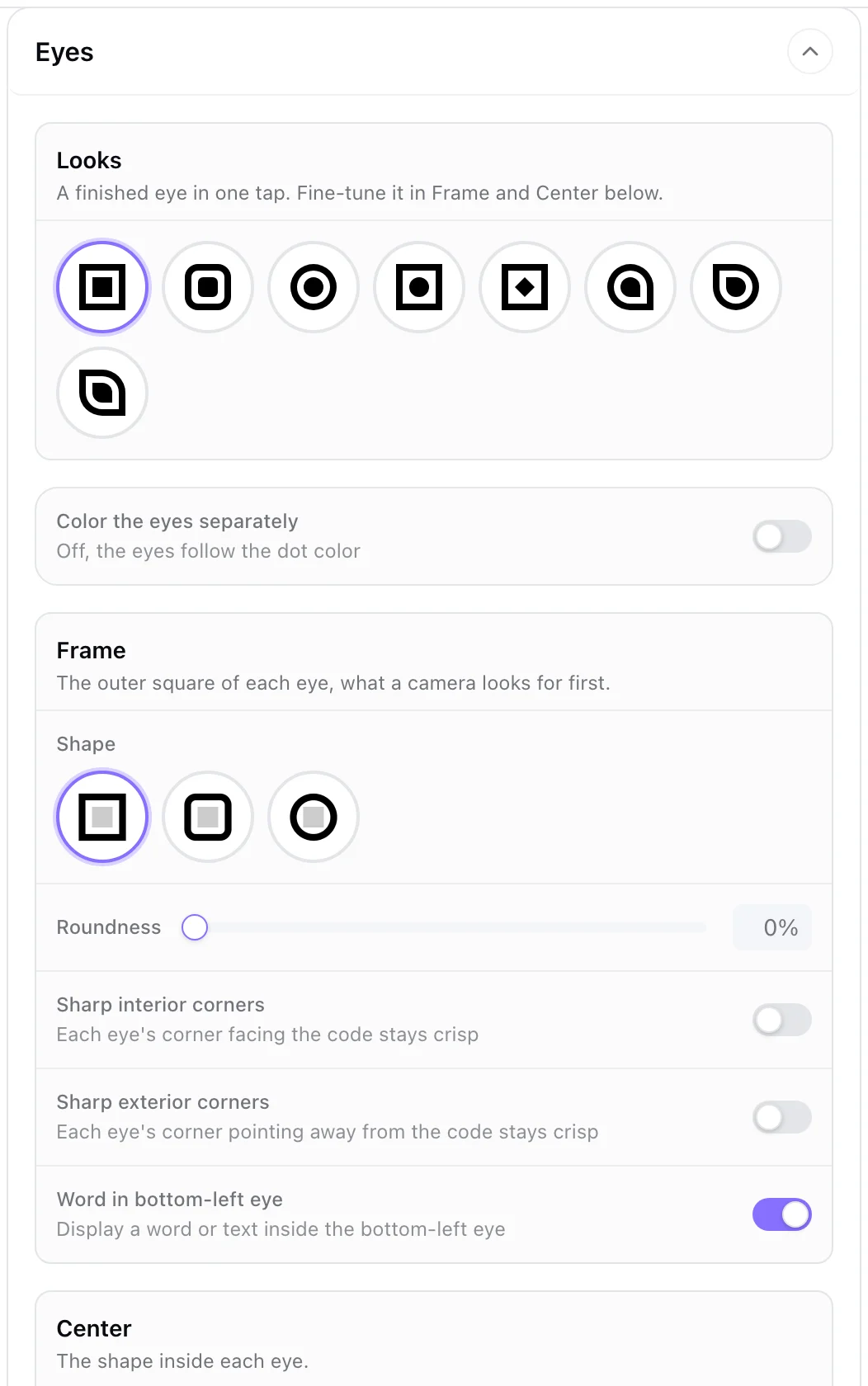
The three corner markers a camera looks for first.
- Looks: eight finished eyes in one click, Square, Rounded, Circle, Dot, Diamond, Drop, Petal and Leaf. Drop points each eye toward the middle of the code, Petal points it away, and Leaf does both. Each sets the frame and the center together; hover a tile for its name, then fine-tune the result in Frame and Center. A look stays selected only while the frame and center still match it.
- Color the eyes separately: off, they follow the dot color; on, the frame and the center get their own colors.
- Frame: Shape Square, Rounded or Circle, a Roundness slider, Sharp interior corners to keep the corner facing the code crisp, Sharp exterior corners to keep the corner pointing away from it crisp (both together make a leaf), and Word in bottom-left eye, which prints KUIKCODE inside that eye in the eye color (it moves to the bottom-right when the pattern is mirrored). On Basic and Core the word stays on, and templates load with it on; PRO and Business can switch it off. A code saved with it off keeps that until you switch it on.
- Center: Shape Square, Rounded, Diamond, Circle, Star, Four-Point Star, Clover or Plus, and Follow frame shape, which gives the center the frame's own shape, sharp corners included. Picking a shape turns it off; turning it off goes back to the last shape you picked, or the one closest to the frame.
Background
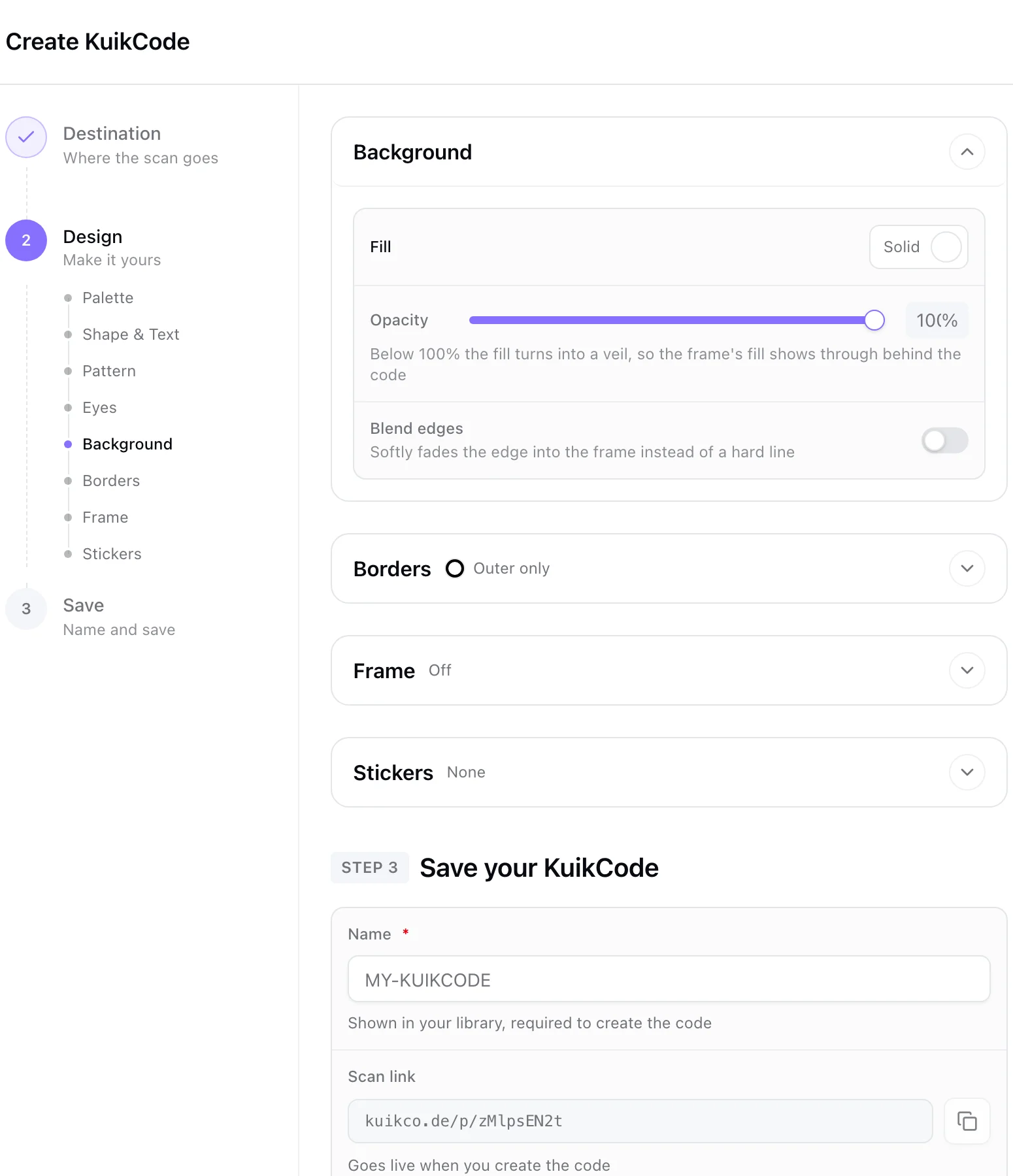
The area behind the dots, inside the code's shape.
- Fill: Solid (a color), Gradient (Linear or Circular, up to six stops) or None, which leaves a real hole so the frame's artwork shows through and a PNG export keeps transparency there. Designs made before the picker changed may still carry an Image background; it can be kept or replaced, but new image backgrounds go on the frame instead, where the photo adjustments live.
- Opacity (solid fills) turns the fill into a veil below 100%, so the frame shows through behind the code.
- Blend edges softly fades the edge into the frame instead of a hard line.
Borders
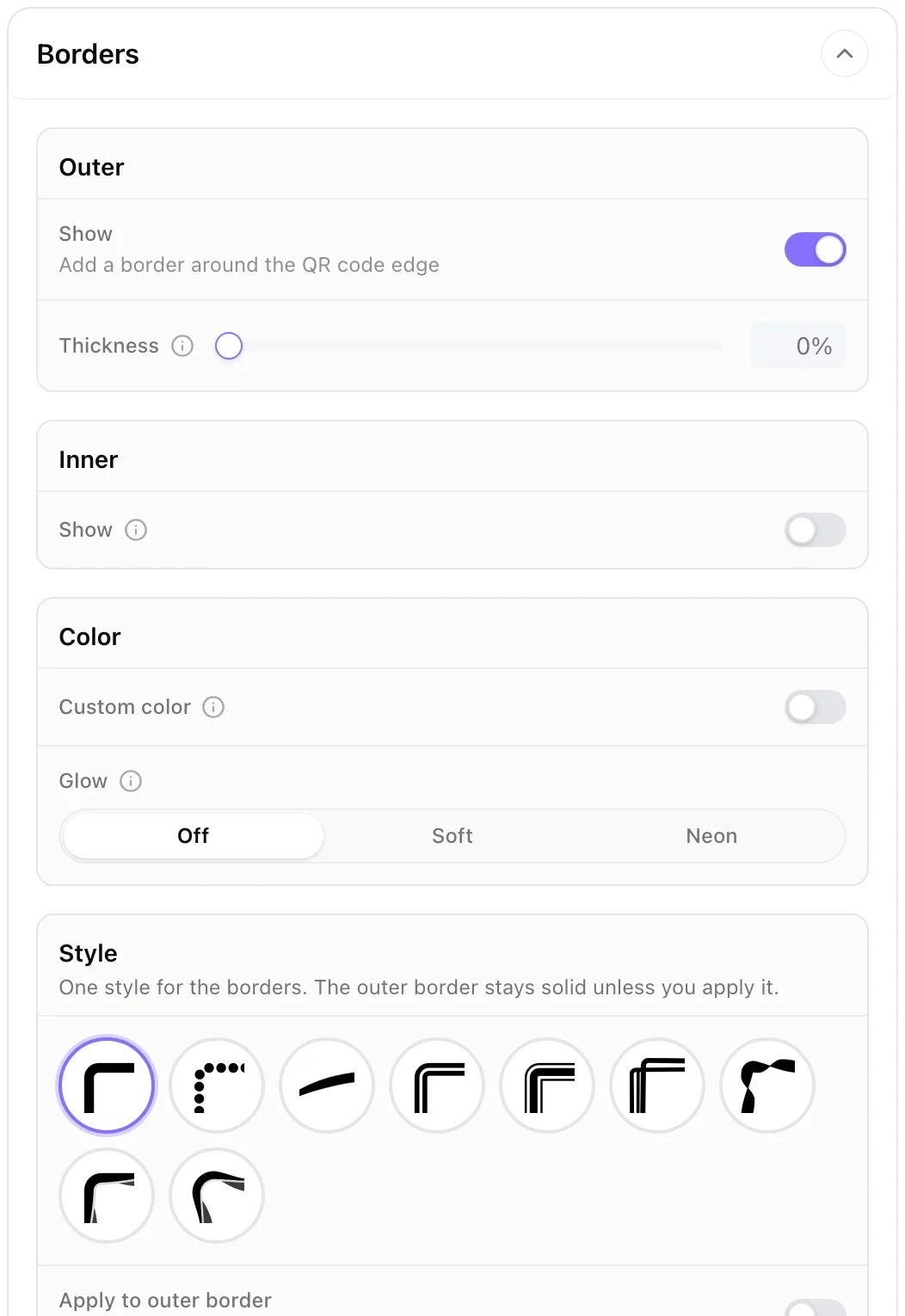
- Outer: Show (on by default) and Thickness. It grows inward, so the outside edge of the code stays where it is.
- Inner: a second line that follows the QR outline and cuts around the eyes, with Thickness (grows outward).
- Color: borders follow the dot color unless Custom color is on, which opens a Fill of Solid, Split or Gradient. Split works like the frame's: 2 to 4 colors in equal stripes (vertical or horizontal) or pie slices, and both borders change color at the same lines. Separate colors leaves a small gap at each change, so the borders read as separate pieces with rounded ends (on square codes the ends are cut straight). Glow is Off, Soft or Neon. Soft adds a halo behind the borders in their color, segment by segment on a split. Neon burns both borders white, with the bright version of their color as the light around them, and is brightest when the frame or the page around the code is dark.
- Style: one style for the borders: Solid, Dotted, Tapered, Double, Outlined, Sketch, Ribbon, Wave or Swell. Sketch draws three loose pencil passes, like a ring drawn by hand. Ribbon twists as it runs, its crests rounded. Wave is a thick-and-thin line with a pale band beside it and brighter crescents where it is thinnest. Swell is the Wave with its outside edge rising at every crest: eight swells round a circle, two a side on a square. On the outer border it swells outward, so the code's background stays covered; on the inner border it swells within the border's own width, clear of the outer border. The inner border always takes the style; the outer border stays solid unless Apply to outer border is on, and with only the outer border showing, picking a style turns it on. Apply to outer border is off on a shaped edge, where the outer border follows the edge, and with Tapered, which needs line ends. On the outer border, Ribbon wraps the edge of the code's background, and Ribbon, Wave and Swell take a band about one and three quarter times the thickness.
Frame
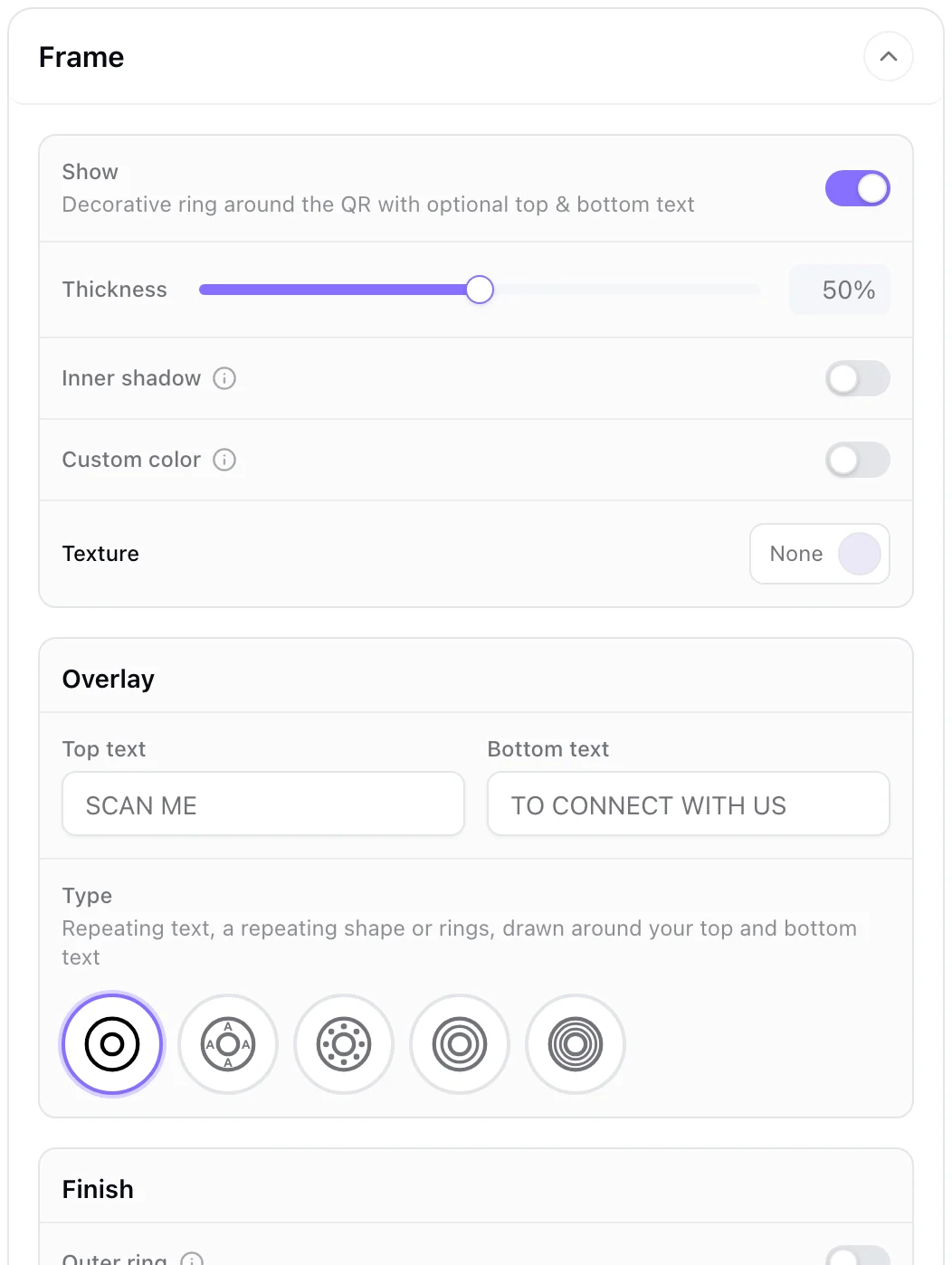
The decorative ring around the code, with optional text at the top and bottom. Show turns it on; Thickness sets the band; Inner shadow adds a subtle shadow where the frame meets the code.
On a square code the frame has a Style: Band runs it the same width all the way round, with a top and a bottom text; Label makes it a card, the code on its plate near the top and your Words set large in a band of their own underneath, all inside the square. The card is taller than wide: it keeps the same margin on its top and both sides, and the image stays clear on either side of it. Label starts with SCAN ME, and its words take the frame's text color; the overlay types belong to the band.
With Custom color off, as on a new code, the band takes the dots' color, two colors or gradient, and follows them when you change the dots. Turn it on to give the frame its own Fill, which starts from the dots' colors. Codes saved before this switch existed keep the fill they had.
Fill has eight kinds:
| Fill | What you get |
|---|---|
| Solid | One color |
| Split | Two to four colors laid out Vertical, Horizontal or as a Pie |
| Gradient | Linear or Circular, two to six stops, an angle that snaps to every 45° |
| Halftone | A Base color with Dots printed over it, growing toward the Direction you pick: the top and bottom, the sides, the outer edge or the inner edge. The dots take one to four colors, the first on the smallest dots and the last on the biggest, blending in between (below) |
| Glossy | One color lit from the top right, in two Styles. Bubble: a see-through bubble, milky through the middle with the color gathering toward the rim (deepest along the bottom), a light line around the edge and two soft highlights riding it. Metal: a polished bezel with bands of sheen and bevelled edges, the outer edge catching the light at the top right and the inner edge at the bottom left; gold, silver or copper come from the color you pick. Shine sets how strong the highlights are. Lower the code background's Opacity to let the bubble (or the brushed metal plate) show behind the dots |
| Streaks | A Base color crossed by parallel bands of light at one Angle, in one to three colors: wide soft glows and thin sharp lines, the sports-broadcast look. Amount sets how many bands, Softness how many are glows rather than lines, and Shuffle deals a new arrangement. The angle snaps to 0°, 45°, 90°, 135° and 180° while you drag |
| Image | A photo: upload, Choose from library or Stock photos, then adjust it (below) |
| Shader | A generated texture: Plasma, Mesh, Silk or Dots, each with its own palette and knobs |
Texture lays a repeating pattern over whatever the frame is filled with: a solid color, the dots' colors, a gradient, a photo or a shader. Pick one of 55 patterns (Topography, Hexagons, Greek Key, Bamboo, Four Point Stars and more), or None, then set its Color, Opacity and Size (smaller repeats more, larger shows fewer, bigger motifs). Blend mixes it with the fill: Normal paints it in its own color; Multiply draws it as a deeper shade of the fill's own colors, like a pattern pressed into it; Screen draws a lighter shade, like a glow on dark fills; Soft light and Overlay raise the fill's contrast along the pattern, gently or strongly, and show best on mid tone fills. Multiply and Screen need a color: with black, white or grey they look the same as Normal, so choosing them starts from a color of the fill. A first pattern on a colorful frame starts on Multiply in one of its colors; on black, white or grey it starts on Normal, in white or black, whichever shows. The texture stays on the band and never goes under the code, and under the frame's top and bottom text it shows at 40% at most so the words read. Patterns by Hero Patterns (Steve Schoger, CC BY 4.0) and css-pattern.com (Temani Afif, MIT).
Halftone dots: Dot size sets how fine or coarse the dots are. Smallest and Biggest set how much ink the dots print where they are smallest and where they are biggest, from no dot at 0% to solid at 100%; keep Biggest under about 75% and the dots never touch. Contrast sets how quickly they change size: at 0% they change evenly across the band, higher keeps wide areas of the smallest and biggest dots with a short change between them. With a single dot color, the arrows next to the colors swap the base and the dots. Lower the code background's Opacity and the dots continue behind the code.
Image adjustments: Zoom, Pos X and Pos Y to frame the photo, Saturation and Brightness (100% is the photo as shot), and a Tint strength with its Tint color to wash the photo towards your brand. These controls belong to the frame image; the same photo can be used at full strength as a sticker or toned down as a frame.
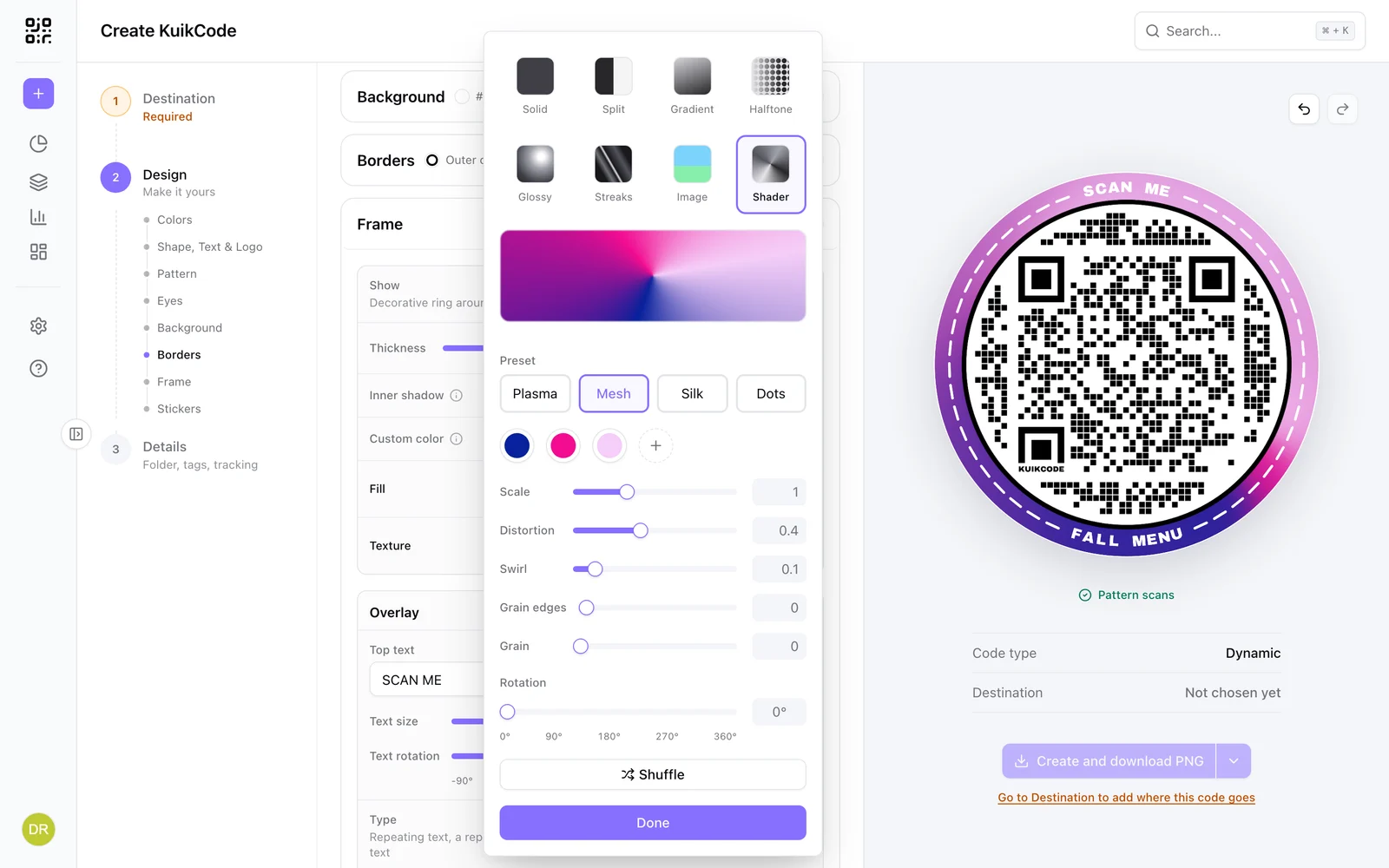
Shaders: Plasma and Mesh take two to five colors, Silk a front and back pair, Dots a fill, back and stroke. Each preset has sliders for scale, distortion, softness, wave shape, dot size and so on, plus a Rotation that snaps to every 45° while you drag; Mesh and Plasma also have Shuffle for a new random seed. Switching presets keeps what you set on each one while the editor is open, so you can compare and come back. The result is drawn into the artwork, so it exports like any other frame.
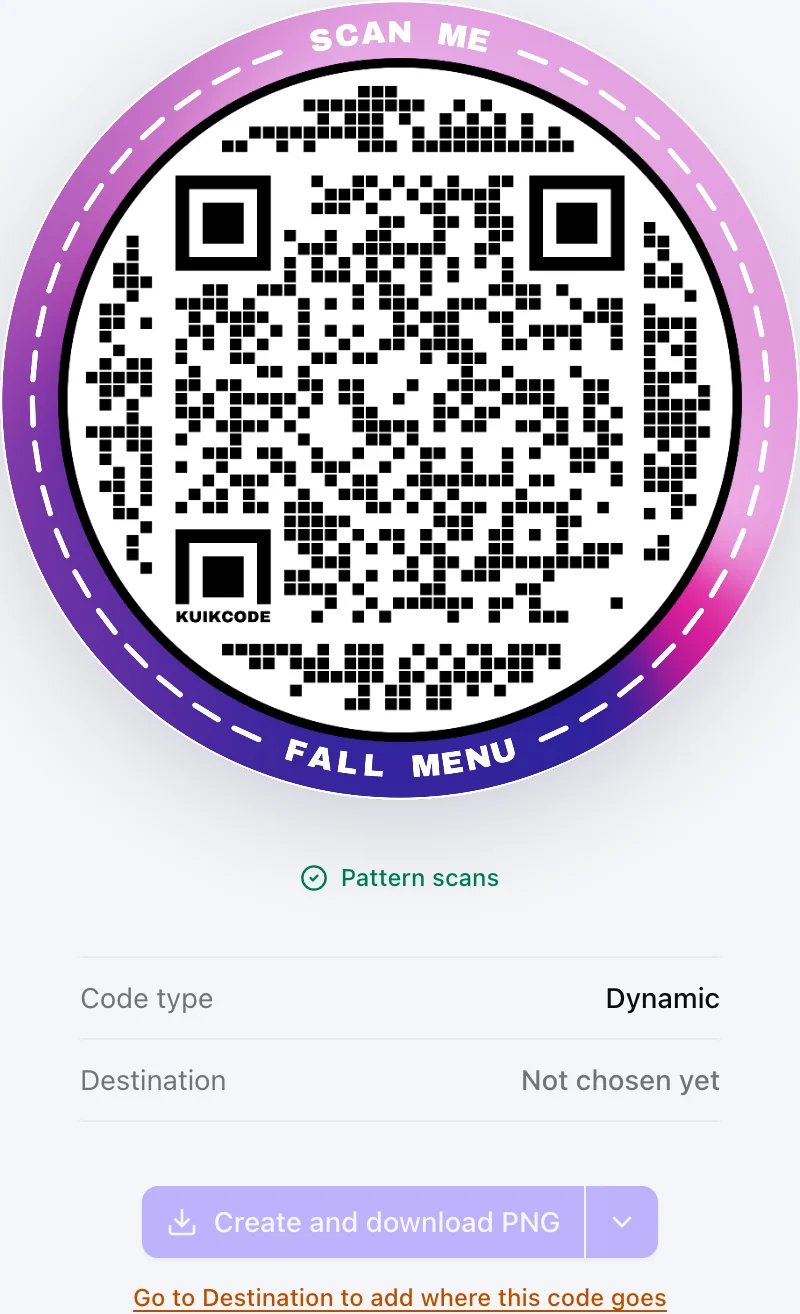
Overlay is what sits on the band:
- Top text and Bottom text, up to 30 characters each, always uppercase. On a GS1 code the bottom text carries the human-readable line when Show under code is on.
- Text size, from 60% to 160%, makes both texts smaller or bigger together. Bigger text fills more of the band; it stops growing once the longer text fills the space it has, on a round frame two fifths of the ring, so a gap stays between the top and bottom texts. On the square shape, a text too long for its edge makes both texts smaller until it fits, at any size.
- Text rotation (circle shape only) turns both texts around the ring together, from -90° to 90°; dragging snaps to -90°, -45°, 0°, 45° and 90°. They stay opposite each other and upright: at -45° the top text sits at about 10:30 and the bottom text at 4:30. The overlay turns with them, so its gaps stay around the words. On the square shape the texts run straight along the top and bottom edges.
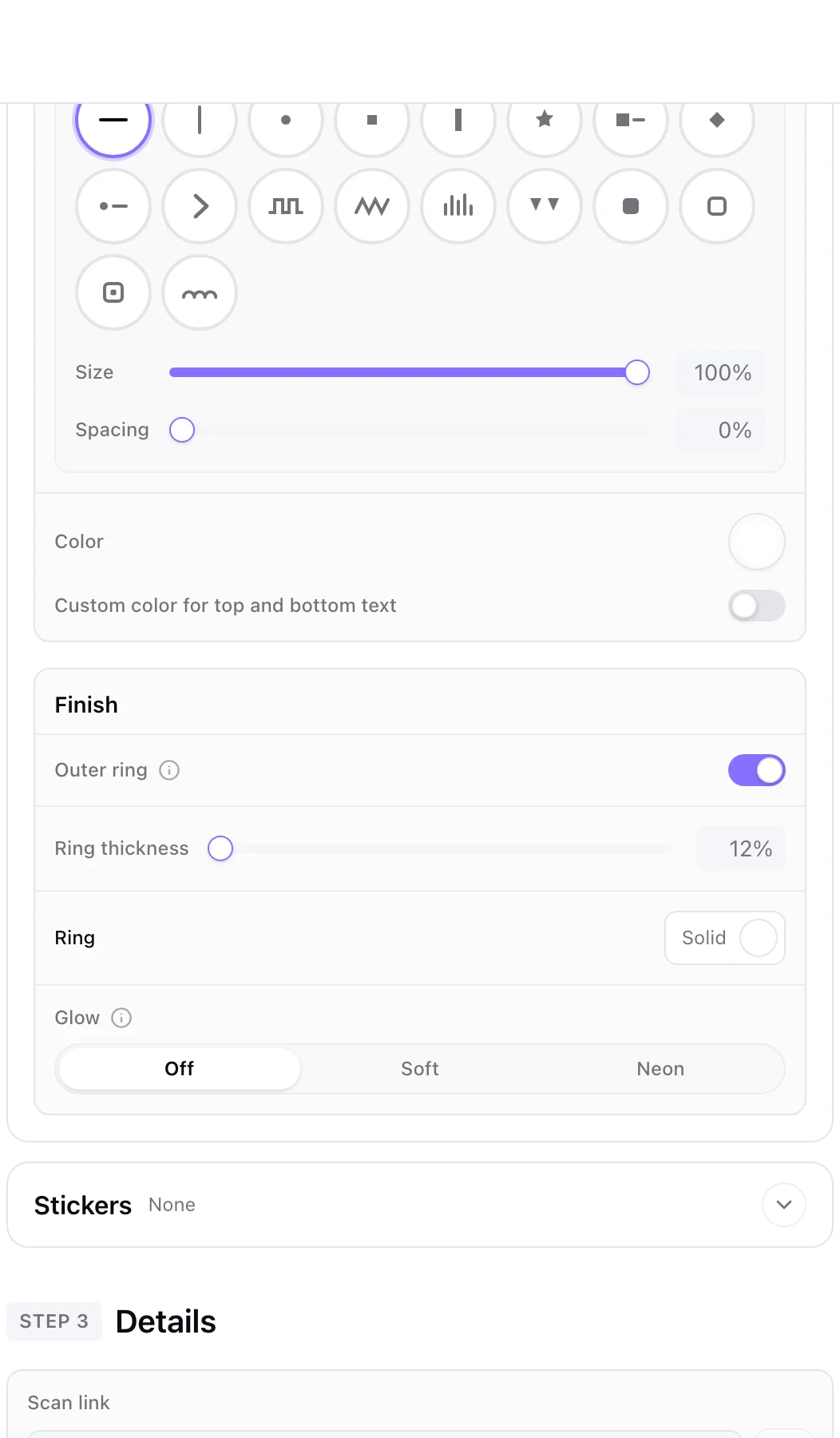
- Type, drawn around the top and bottom text, which show with every type. Each type is a small picture of the band (square on a square code), with its name on hover: None, Repeating text (a word repeated around the band, one or two colors), Repeating shape (Dash, Line, Circle, Square, Rectangle, Star, Diamond, Chevron, Square wave, Zigzag, Sound wave, Pennant, Scallop and more), 1 ring or 2 rings. The options for the type you pick sit right under its tiles.
- Size, for Repeating text and Repeating shape, from 20% to 100%. Smaller words or shapes fit more of them around the band, so a thick frame can carry many small ones.
- Spacing, for Repeating shape, from 0% to 100%. 0% is the classic spacing; 100% doubles the space from one shape to the next, so fewer of them go around the band. Square wave, Zigzag and Scallop are one continuous line, so they don't have it.
- Thickness, for 1 ring and 2 rings, from a hairline at 0% to a bold line at 100%; 70% is the classic weight.
- Spacing, for 2 rings: how far apart they sit, as a share of the band, from 15% to 70%. New designs start at 20%; designs saved before the slider keep their classic 36%.
- Line style, for 1 ring and 2 rings: the border styles, as the same tiles: Solid, Dotted, Double, Outlined, Sketch, Ribbon, Wave or Swell. Tapered stays a border style, since a closed ring has no line ends. Outlined closes its ends beside the text. Wave and Swell draw their pale band and crescents in a see-through version of the line's color, so a white ring keeps its layers on a colored band.
- Color for the texts and the overlay. Below it, Custom color for top and bottom text gives each text its own color, Top text and Bottom text; turn it off and both follow the Color again. Auto Design always uses the Color for the texts.
Finish: Outer ring, a thin line wrapping the outside of the frame with its own Ring thickness and Solid or Gradient fill, and Glow: Off, Soft, a halo in each piece's own color behind the rings, words and shapes, or Neon, which burns them white with their colors as the light, like a lit sign. A deep color glows as the bright version of its hue, so navy lights up blue and black lights up white. Neon is brightest on a dark band, and pieces keep their own colors, so a blue ring can glow beside pink words. Glow size, under Soft or Neon, sets how far the light reaches: 50% is the classic glow, lower keeps it tight to the pieces, higher spreads it wider, always inside the frame's edge.
Stickers
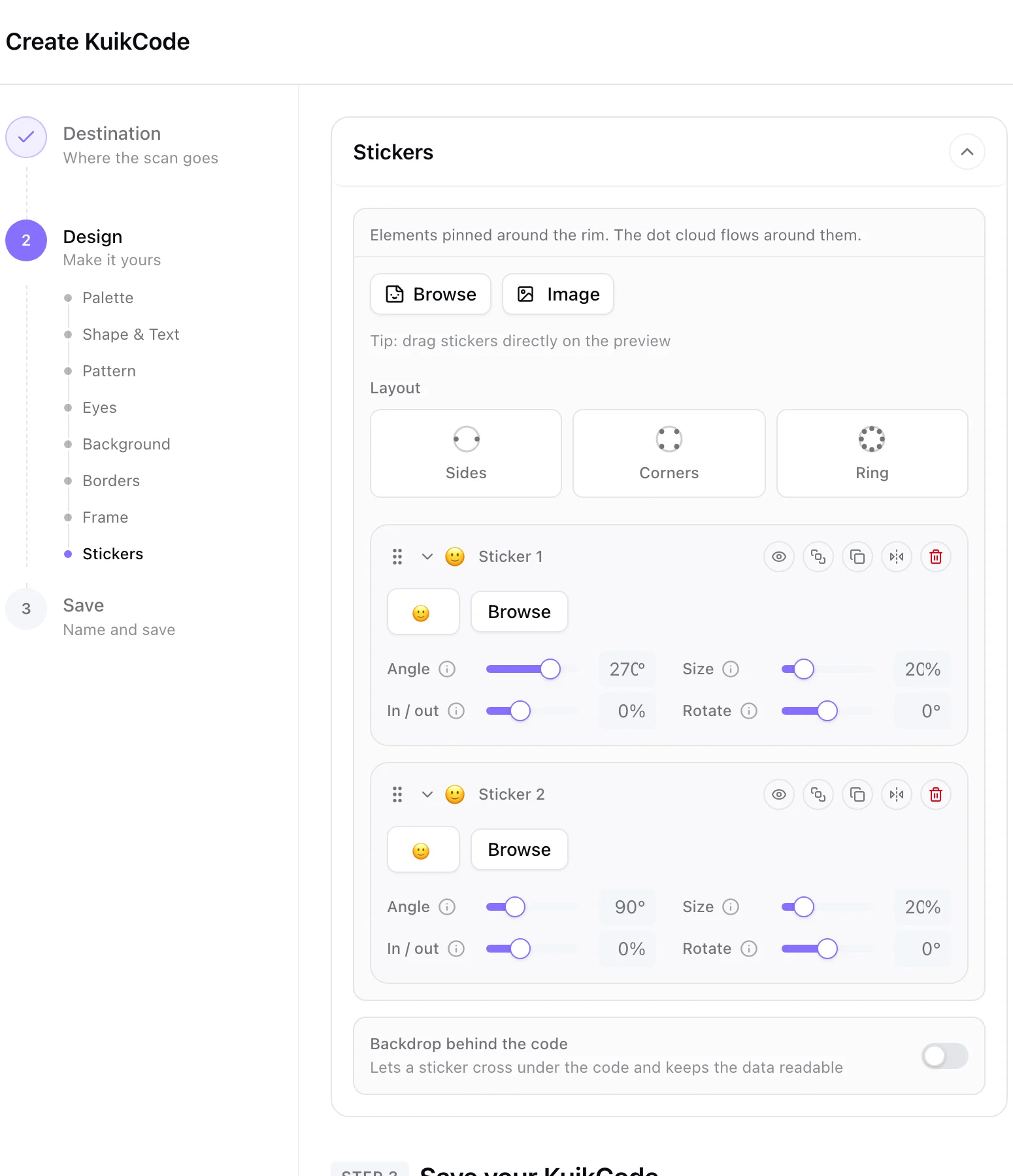
Stickers sit on the frame band, so they need the frame on. Browse adds one from the built-in library (emojis included) and Image uploads your own; drag stickers directly on the preview to place them. Each sticker is a card in a layers list, top card in front:
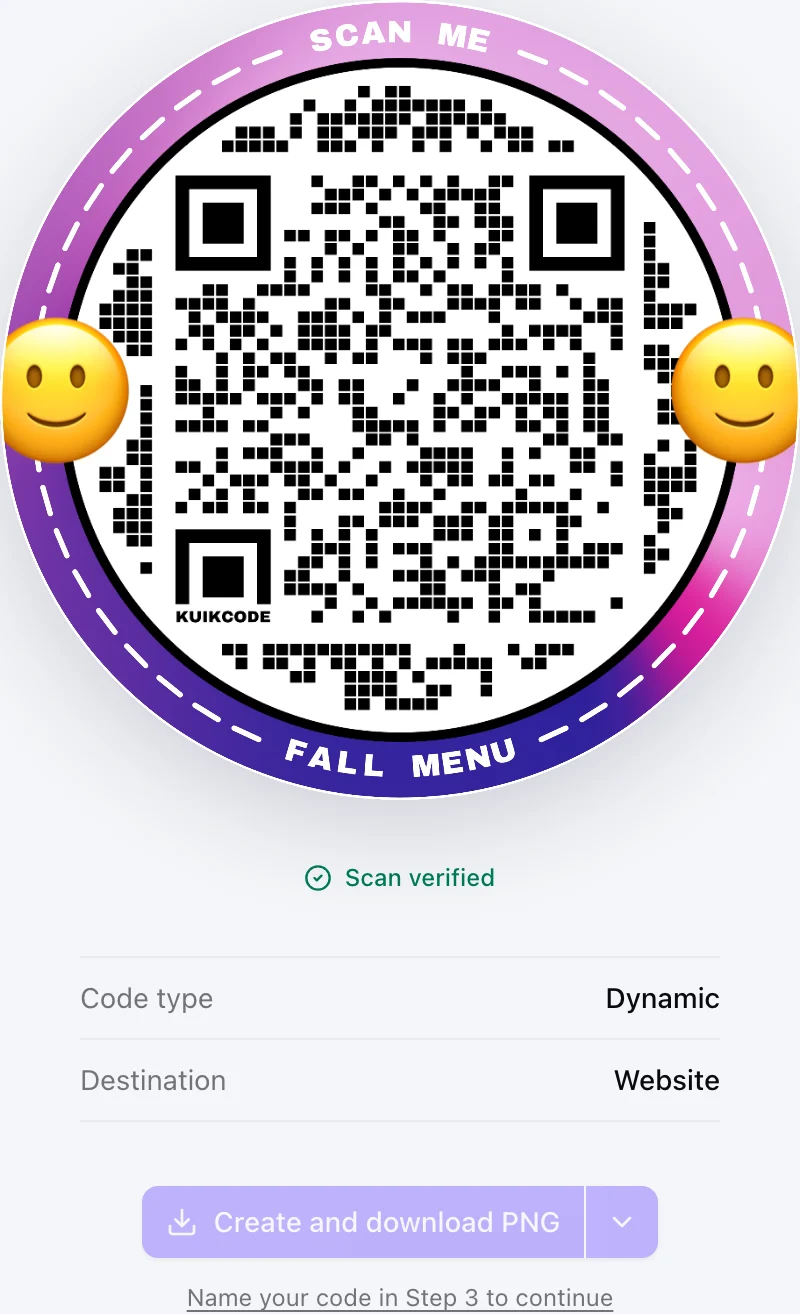
- Angle around the rim, Size, In / out to slide it from the center past the edge, and Rotate on its own axis, which snaps to every 45° while you drag. The sticker follows the frame's own edge, so on a square code it travels along the sides and into the corners.
- Actions: hide, Duplicate, Flip horizontally, Remove sticker (at once, with Undo in the message that appears), and Bring in front of the code for the one corner without an eye, so a sticker can overlap the dots without breaking the scan.
- Image options for image stickers: Browse, Replace, Choose from library, a free-form crop, and Remove background with Quick remove or AI remove. A photo with no transparency is flagged, because it would show as a box.
- Hide all (eye) and Remove all (bin) at the top right of the section. Hidden stickers stay in the design and draw nothing, also after saving, so you can show them again later; the closed section then reads 2 hidden. Remove all asks for a confirmation first.
- Layout with two or more stickers: Sides, Corners or Ring spreads them evenly in one tap. Corners puts them in the frame's corners, the Label card's included.
- Backdrop behind the code lets a sticker cross under the code while keeping the data readable, with its own fill, opacity and edge blending. It only draws while at least one sticker is visible: with no stickers, or all of them hidden, it is off, and it comes back with its settings intact when you add or show one.
The sticker library
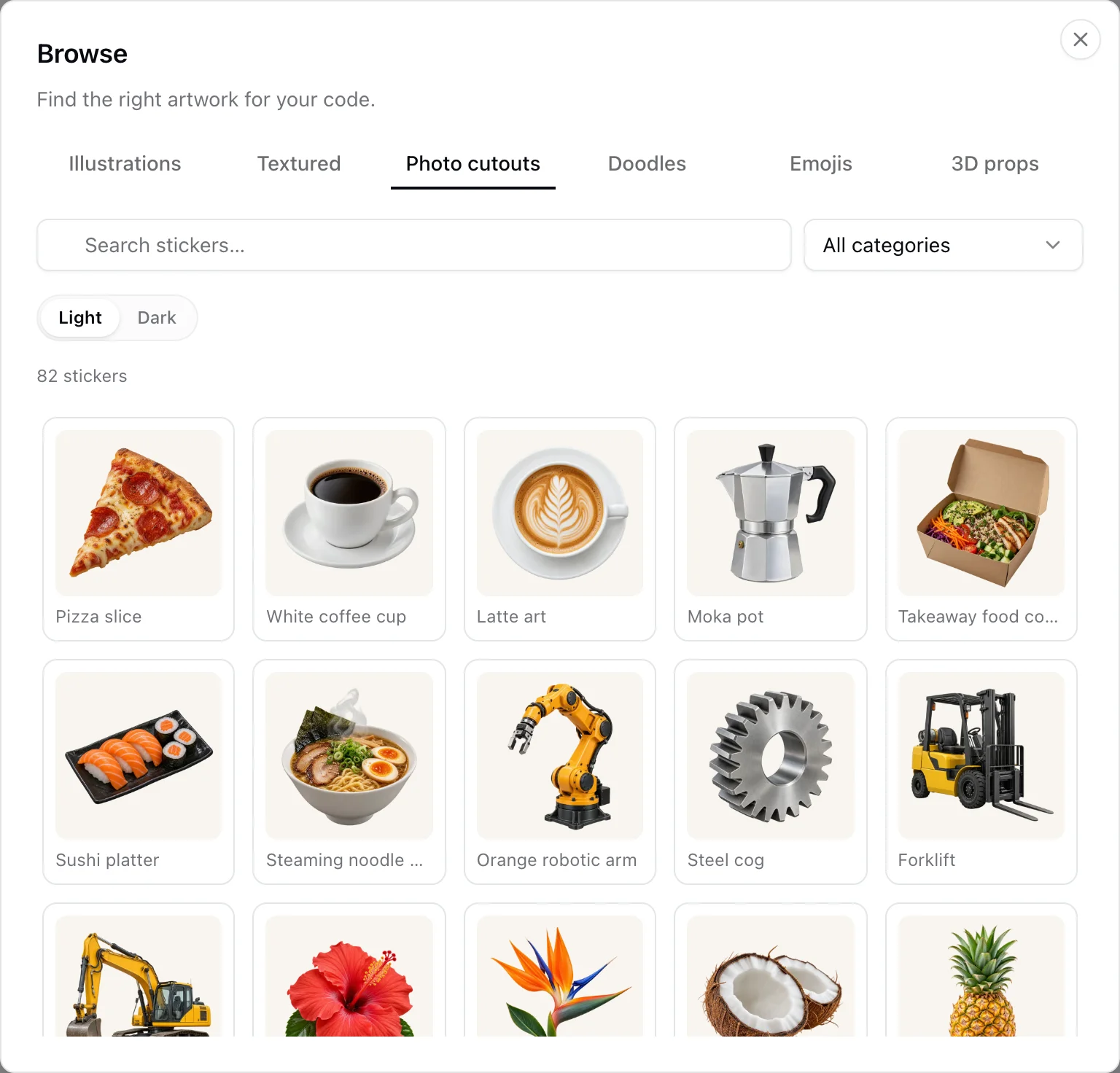
Browse opens KuikCode's own artwork, drawn and generated in-house with no third-party fonts or text, so every piece is safe to print. Six collections sit in tabs:
- Illustrations: original vector drawings in full color.
- Textured: painted and dimensional illustrations.
- Photo cutouts: photorealistic objects with a transparent background, from sports gear to a champagne bottle.
- Doodles: the same drawings as recolorable outlines. Pick an ink from the swatches or set a custom color.
- Emojis: a curated set with searchable sports and event groups.
- 3D shapes: ten meshes, each as a Solid or a Wireframe, in any color.
Filter any collection by category (sports and fitness, food and drink, celebrations, wedding, music and events, arrows, shopping, travel, and more) or type in the search field. Light and Dark switch the preview background, so a white outline is not judged on a white tile. Choosing an item replaces the sticker's artwork and keeps its angle, size, rotation and layer, and reopening Browse from that sticker lands on the collection and color it came from.
Worked example: the Spiderman template
The Spiderman design in the template gallery is one photo used three times, and shows how frame image, image stickers, background removal and the backdrop fit together.
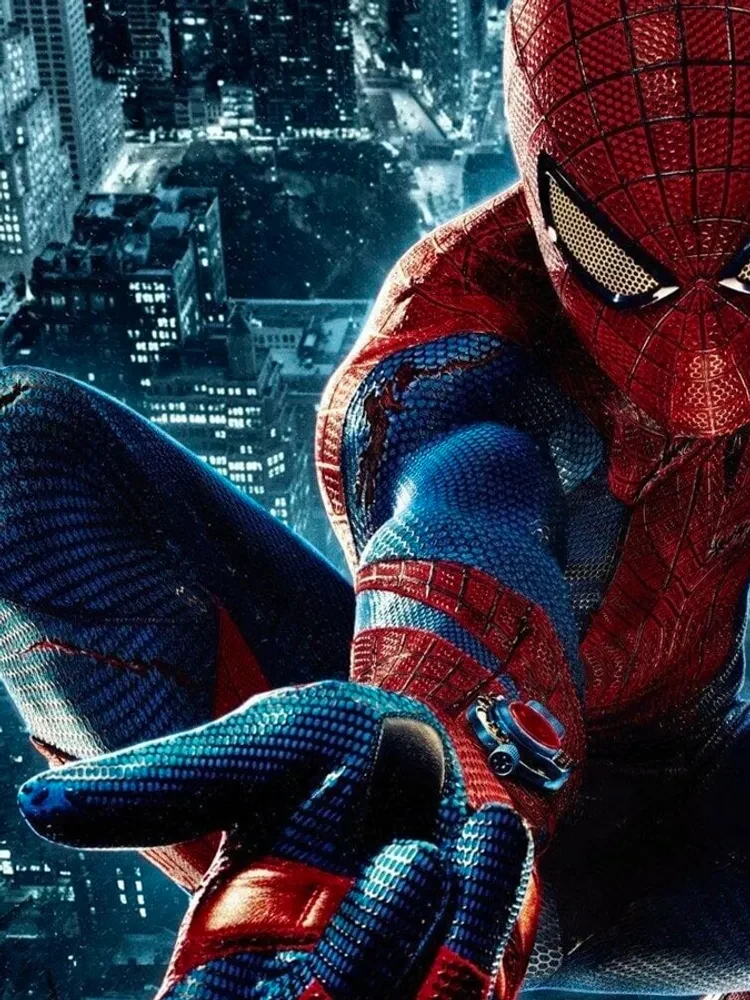
- Frame: switch Show on, set Fill to Image and upload the photo. Zoom and Pos X / Pos Y place the city and the red suit on the band; Saturation and Brightness stay near 100% so the photo keeps its punch, and a touch of dark Tint would calm it if the dots needed more contrast.
- Stickers: add an Image sticker with the same photo. A photo has no transparency, so the editor flags it; open Remove background and use AI remove, which cuts the figure out of the skyline. Quick remove is for flat, single-color backgrounds such as a logo on white. Size, Angle and In / out let the figure lean from the rim over the code; Flip horizontally turns it towards the center.
- Backdrop behind the code: because the sticker crosses the dots, turn the backdrop on. It draws a soft light disc behind the modules (its own Fill, Opacity and Blend edges), so the data stays readable where the figure passes. For a sticker that should sit over the code rather than under it, Bring in front of the code works on the one corner without an eye.
- Shape, Text & Logo, Center: the spider mark is a custom logo; Quick remove cleared its white box. Colors then tunes the dot color to a dark red from the suit, and the scannability badge confirms the contrast.
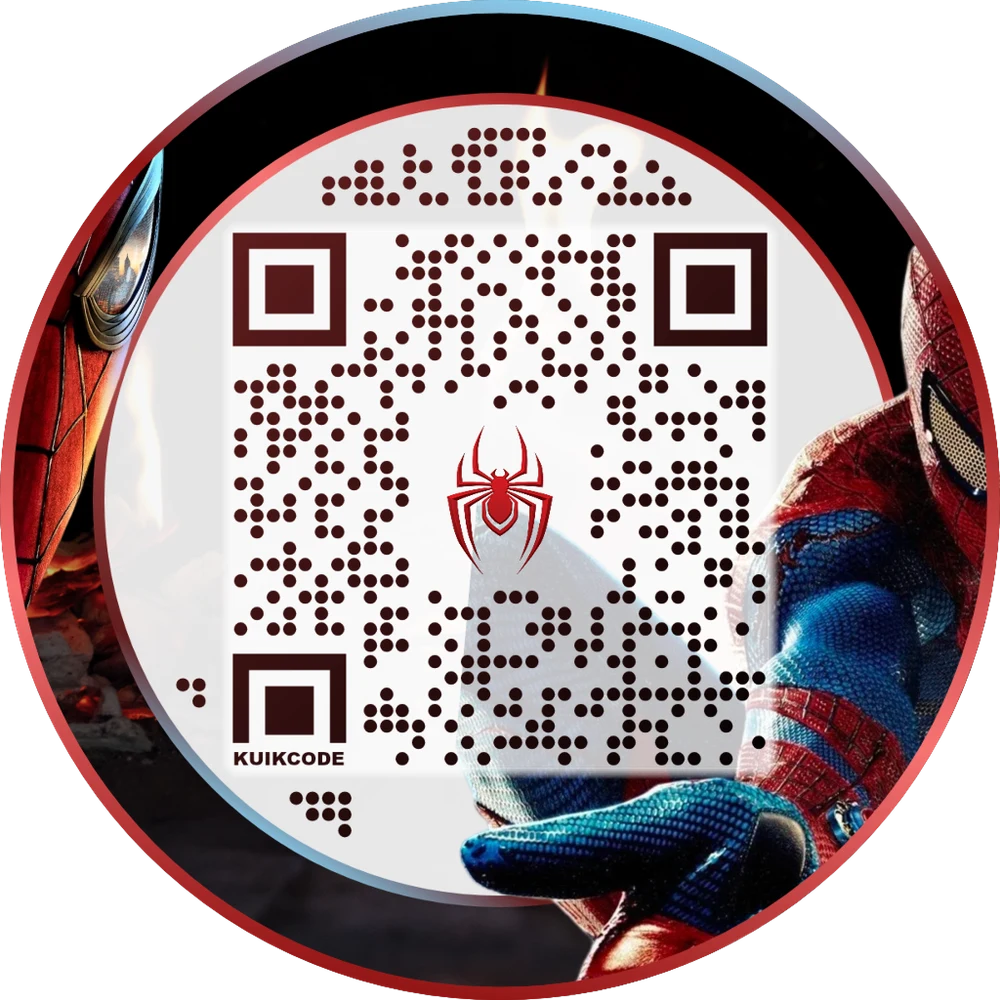
Any photo works the same way: a product shot on the frame, the product cut out as a sticker, a backdrop where it overlaps the code.
Scannable, always
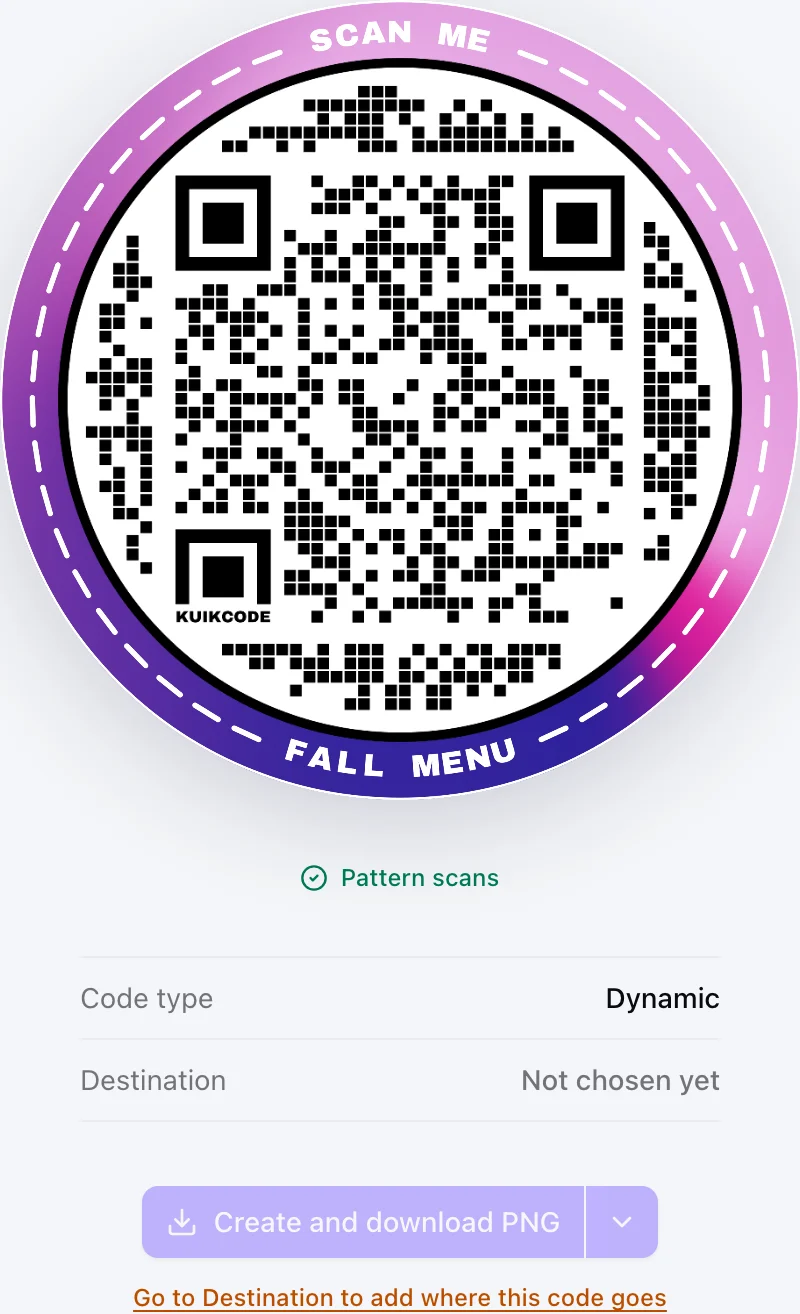
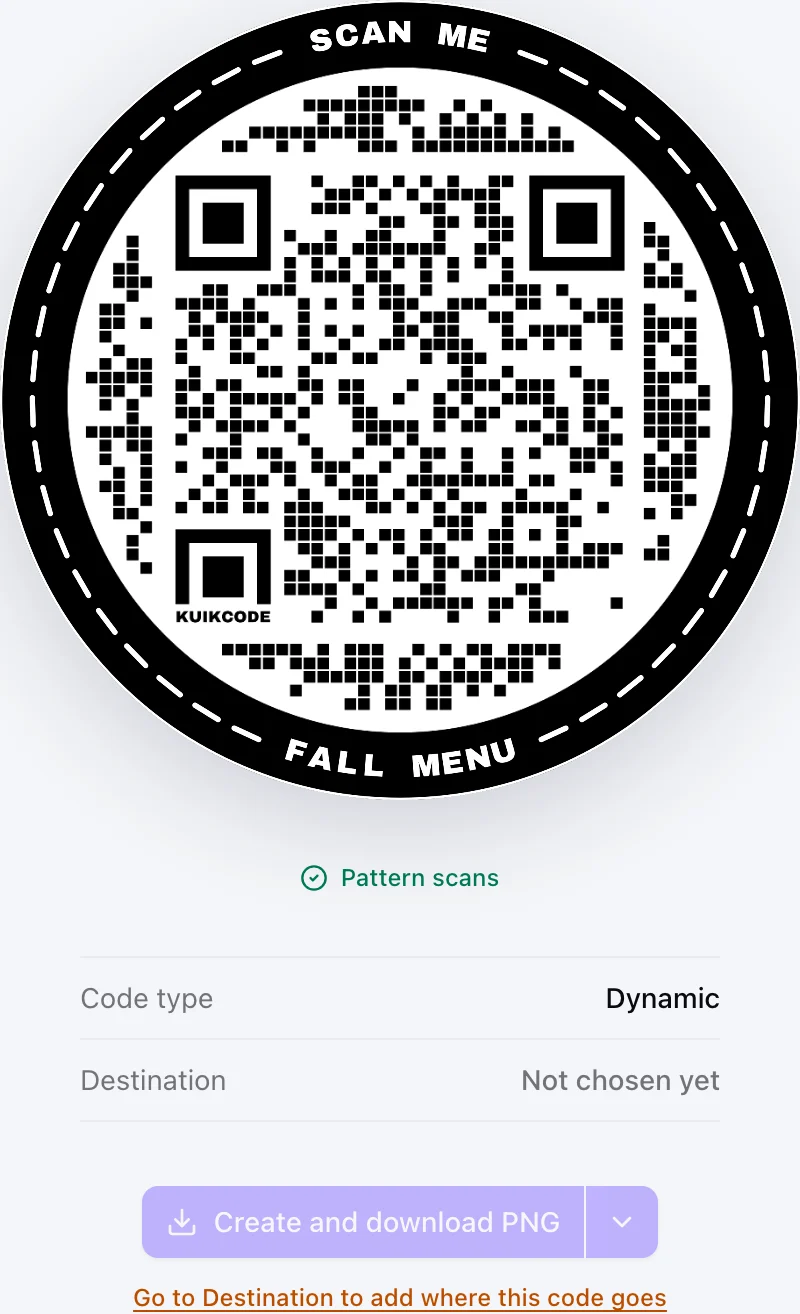
Under the preview a badge reports how well the design reads, from the contrast between dots, eyes and the darkest part of the background. Scannable is green. An amber Scannable, improve contrast means it works but could be safer. A red Hard to scan names the element to fix and links to its section. When the editor decodes the preview itself, the badge reads Scan verified; before Step 1 has a destination it reads Pattern scans, since the pattern decodes but a scan wouldn't land anywhere yet. Light dots on a dark background get an amber Scannable, some apps miss light dots: most phone cameras read them, but some scanner apps never try a code with its colors flipped, so dark dots on a light background are the safest choice.
When there's a one-click fix, Hard to scan offers it: Black background (or white) under dots that disappear into it, or Black dots; on a transparent background over the frame, Black frame. Light dots on a Transparent background are flagged too, since they won't scan on a white page. When a sticker under the code is what hides the dots, it says so and offers Add a backdrop; a sticker running under a code that still reads brings the same button as a suggestion. A fix is an ordinary edit, so Undo takes it back. Downloading a code that is still hard to scan asks first: Fix it and download or Download anyway.
Below the badge the preview lists Code type (dynamic or static) and the current Destination, and holds the download button and format picker.
Brand Kit
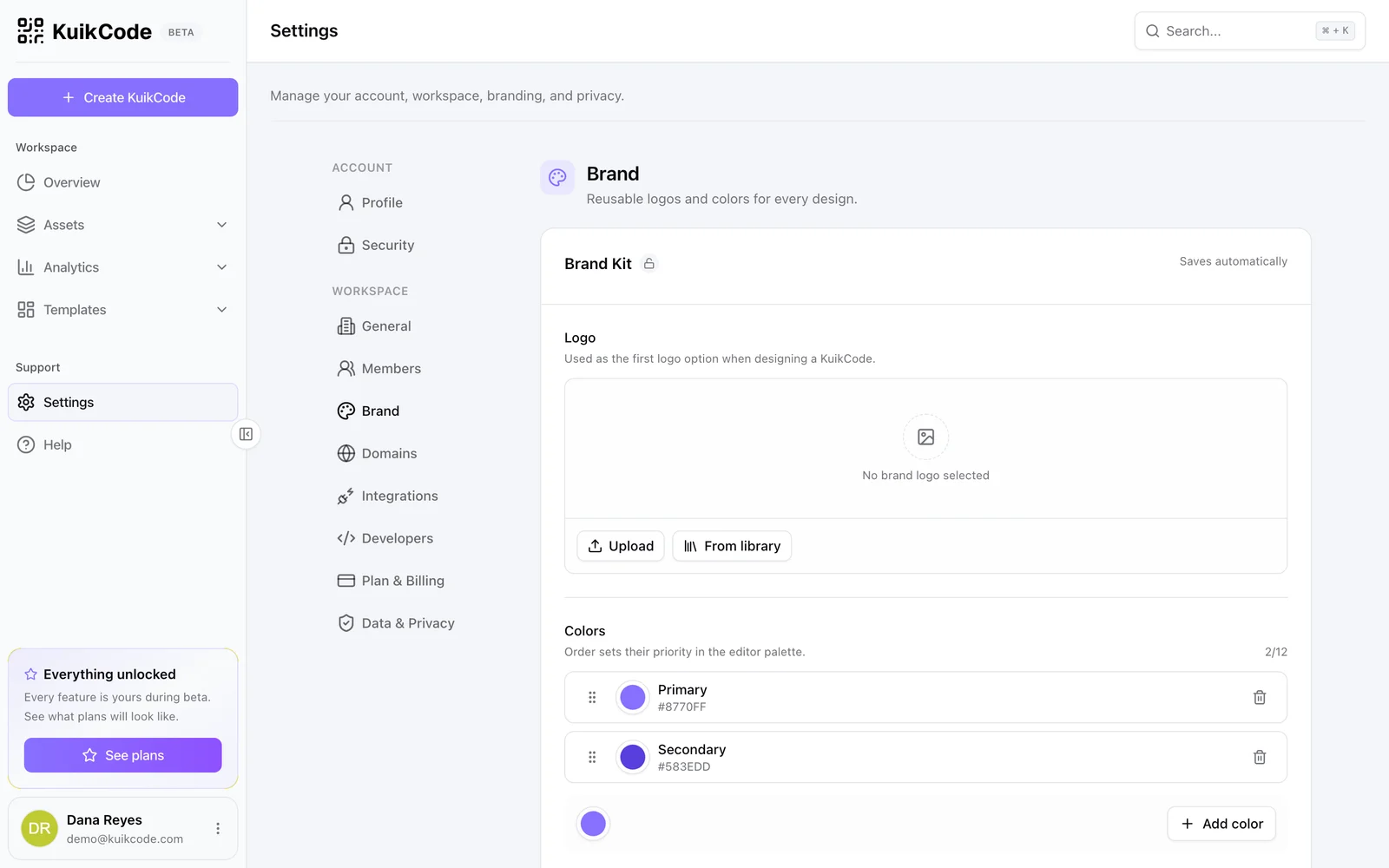
Settings, Brand (PRO) stores your logo, brand colors in priority order and two fonts. In the editor they surface as Use brand colors in Colors, Use brand logo in Shape, Text & Logo, Brand font in the typeface list, and a Brand group in every color picker, so a team designs on-brand without hunting for hex codes.
Templates
Turn on Save design as template in Step 3 when creating a code to keep its design for later. Templates appear in the Saved tab of the gallery and under Templates, KuikCodes, and, through the API, as templateId on new codes. See Templates.