

UTM and templates
Tag a link for your own analytics, and save the values you reuse.
UTM values are added to the destination on every click, so the analytics of your own site can tell where a visit came from. Available on Core and up.
Turn on UTM
In the editor, open Advanced under Organize and turn on Campaign parameters (UTM).
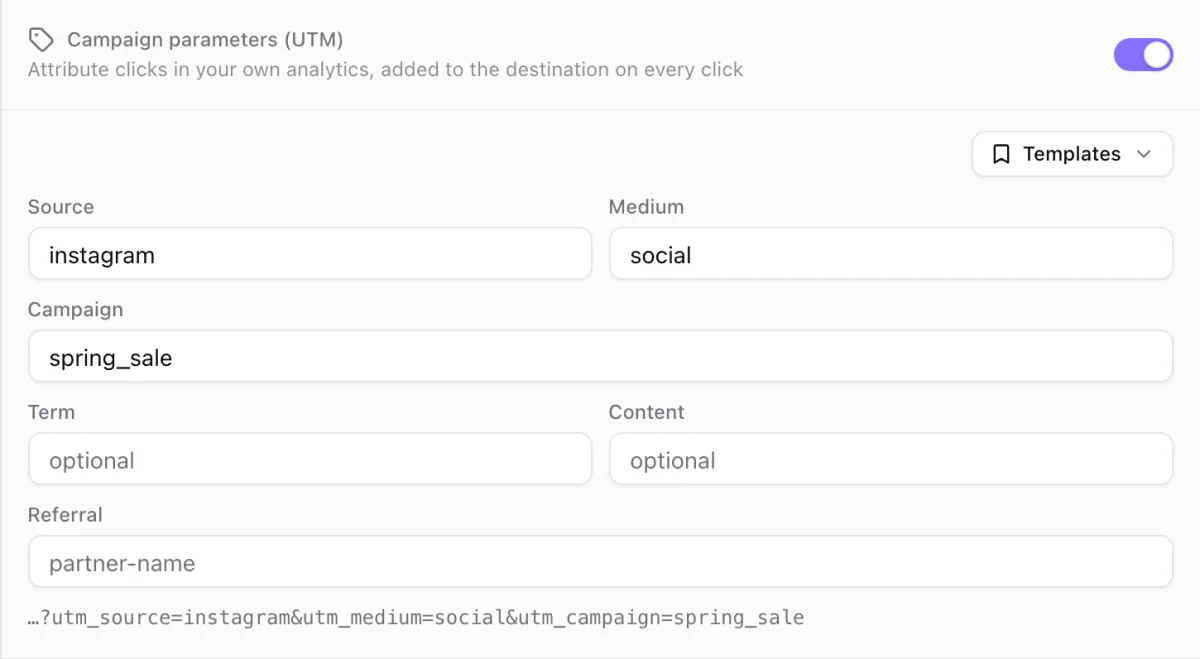
Fill in the values
Type Source, Medium and Campaign, and Term, Content or Referral if you use them. The line at the bottom shows what is added to the destination. A value already in the destination address is left as it is.
Save the link
Save the link. The Advanced header lists UTM as in use, and turning the switch off removes the values.
Templates
A template is a named set of UTM values the whole workspace can apply.
- Next to the UTM fields, Templates lists them: click one to apply it. Save as template saves the values you typed, and Manage templates opens the full list.
- Templates, UTM in the sidebar lists every template. Click Create template, give it a name and at least one value, or open one to edit it.
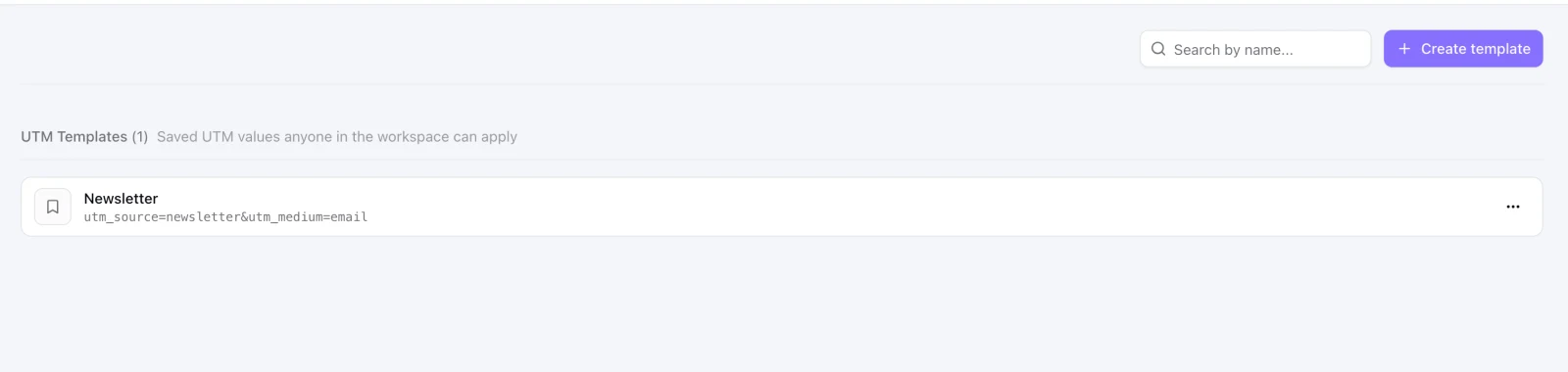
Applying a template copies its values into the link. Editing or deleting a template later does not change links that used it. The same Templates menu appears on a KuikCode, under Campaign parameters (UTM).
Reading the results
Analytics, KuikLinks shows Top UTM campaigns, Top UTM sources and Top UTM mediums for the period. See Analytics.