

Around the dashboard
Where everything lives: Overview, Assets, Analytics, Templates and Settings.
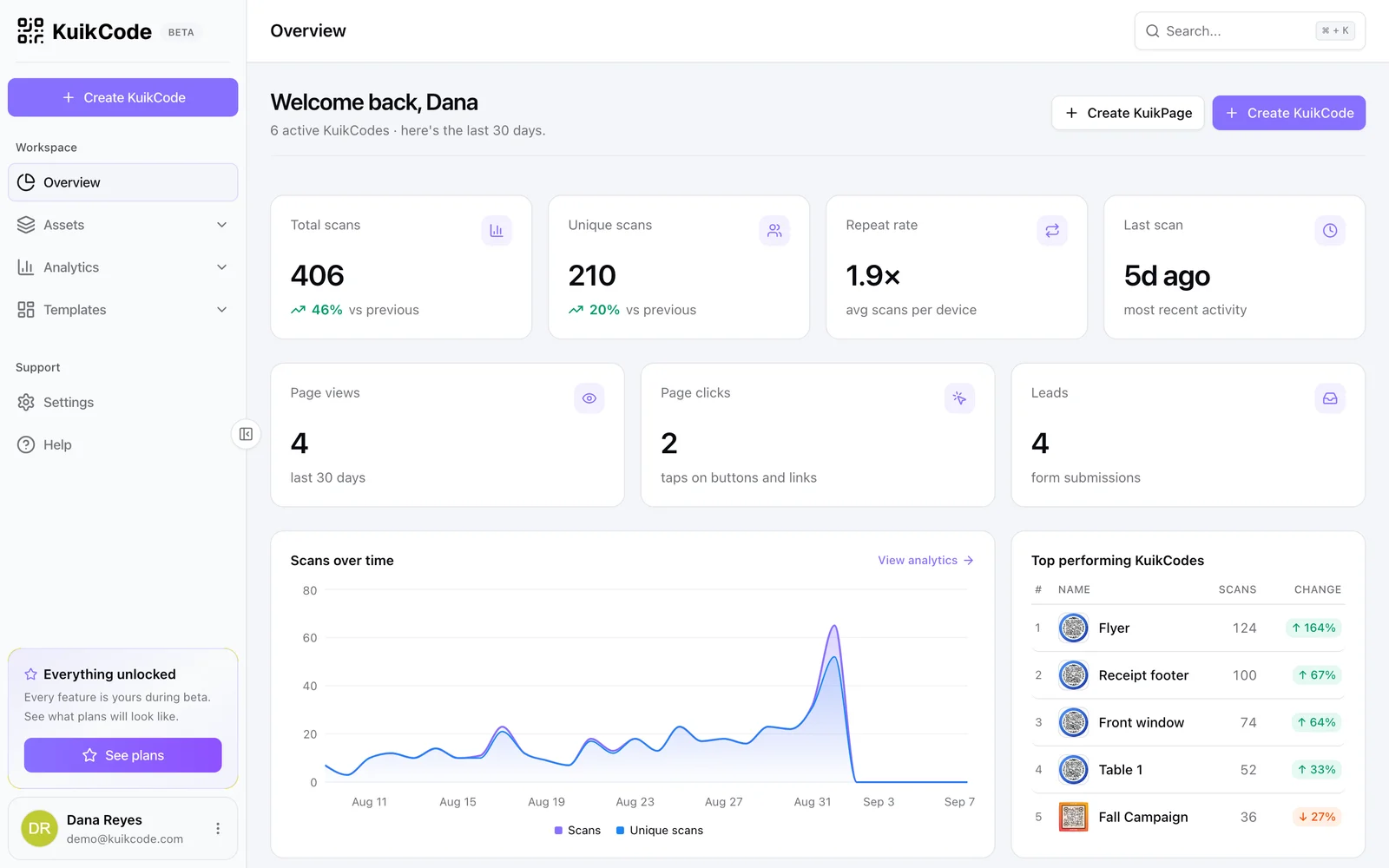
Overview
The landing page of your workspace. It shows the last 30 days at a glance: total and unique scans against the previous period, repeat rate, when the last scan happened, page views, clicks and leads from your KuikPages, the scan trend, and your top performing codes. The two buttons at the top start a new KuikPage or KuikCode.
Assets
Everything you make, in five collections:
| Collection | What is in it |
|---|---|
| Folders | Groups of codes, with scan totals per folder |
| KuikCodes | Every code, active or archived, as cards or a list |
| KuikPages | Your landing pages with their status and address |
| Sites | Zipped websites hosted on kuik.page |
| Library | Logos, photos, files and stickers you uploaded, reused across codes and pages |
Analytics
KuikCodes analytics for scans, KuikPages analytics for page views, clicks and leads. Both have an Overview and a Realtime tab. See Analytics.
Templates
Finished designs to start from: KuikCodes templates (KuikCode's own and the ones your team saved) and KuikPages templates.
Settings
Your profile and security, and the workspace's general settings, members, Brand Kit, domains, integrations, API keys, plan and privacy. See Settings.
The sidebar
The sidebar holds Create, which starts a KuikCode (the editor) or a KuikPage (its "What's this page for?" picker, right where you are), the workspace sections and Settings and Help, with your account at the bottom. Assets, Analytics and Templates expand to their sub-pages.
Collapse it to icons when you want the room, in the editors especially: click the panel icon on the sidebar's edge, or press ⌘B (Ctrl B on Windows). Click an icon to open its page. The sidebar remembers your choice between visits. On narrow screens it becomes a drawer opened from the top bar.
Search
Press ⌘K (Ctrl K) or click Search in the top bar. Before you type it offers actions (Create KuikCode, Create KuikPage, Schedule a report), your recent codes and pages, and shortcuts to every section. Type to search codes, folders, pages, library files and templates across the workspace; See all results opens the full search page.
Help
Help lists the ways to reach a person: the KuikCode community on Slack, and email for feedback and feature requests, read by a human. Below it, short guides on making, organising and measuring, mirroring this documentation.