
Settings
Your account on one side, the workspace on the other: profile, security, notifications, general, members, single sign-on, brand, domains, integrations, developers, plan and privacy.
Settings in the sidebar opens a page with two groups. Account is about you and follows you across workspaces; Workspace is shared with your team. Every section is visible to every member; changing workspace settings needs the owner or an admin, and the page says so where it applies.
Account
Profile
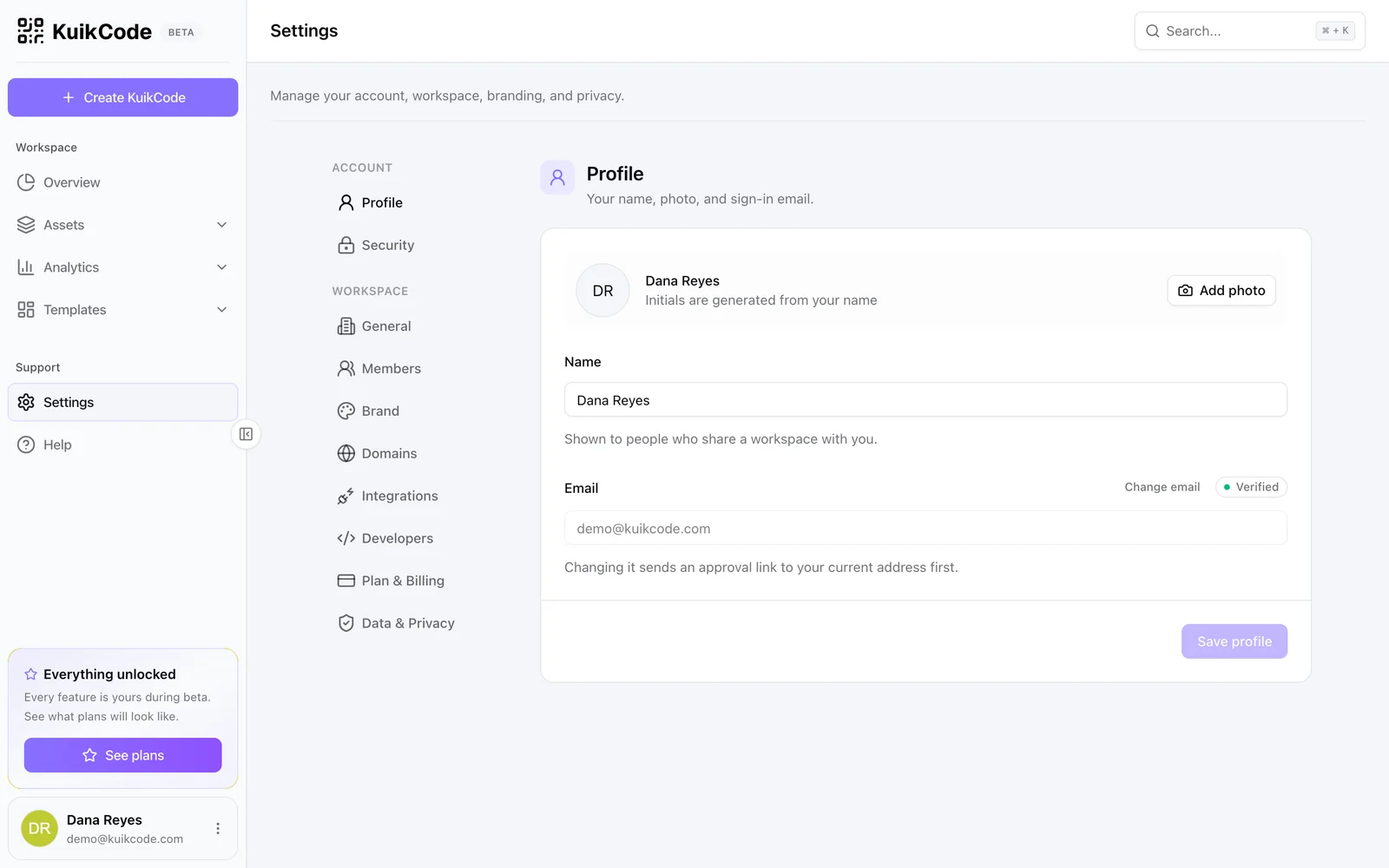
- Photo: PNG, JPG, WebP or GIF, cropped to a square and shown beside your name. Without one, your initials are used.
- Name: up to 80 characters, shown to people who share a workspace with you.
- Email: your sign-in address, with a Verified badge. Change email appears when you sign in with a password; an approval link goes to your current address first, and the change only happens when you click it. Accounts that sign in with Google, GitHub or Facebook manage their email at the provider.
- Language: the language KuikCode uses with you, in menus, messages and emails: English or Spanish. It is saved to your account, so every browser you sign in on follows it. A new account starts in the language of the kuikcode.com page you signed up from, or else your browser's. Your KuikPages keep their own language, set per page with Page language in the KuikPage settings.
Security
- Password: Change asks for the current and a new password (eight characters or more) and signs out your other sessions. Accounts that sign in only through a provider have no password here. A Reset by email link is a click away if you forgot it.
- Sign-in providers: the connected accounts, read-only.
- Active sessions: every browser signed in to your account with its device, last activity and address. Revoke signs one out; Sign out others keeps only the current one. To protect your account, the list only shows within a day of signing in; after that, Sign in again brings it back.
Notifications
The emails KuikCode sends you.
- Tips and offers: product tips (including the getting-started tips during a trial that has made nothing yet, and three one time notes: a welcome when your email is confirmed, one when your workspace saves its first KuikCode and one when it gets its first scan), new features and the occasional offer. Turn the switch off and they stop. The Unsubscribe link at the bottom of each of these emails does the same without signing in, and so does the unsubscribe button some inboxes show next to the sender.
- Account and billing: sign-in links, security notices, receipts and trial reminders. These always arrive.
Workspace
General
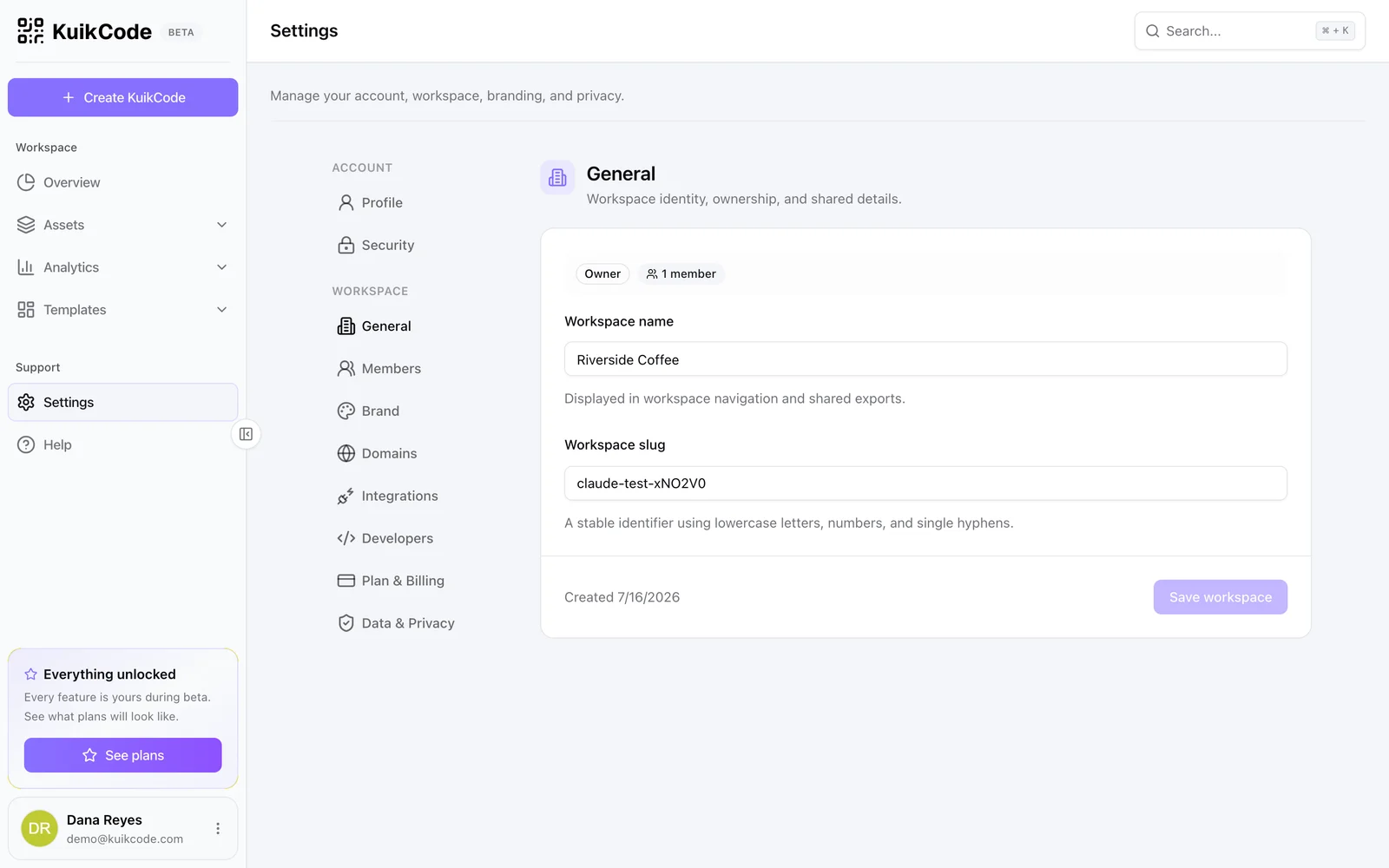
The Workspace name, shown in navigation, reports and exports, and the Workspace slug, a stable lowercase identifier. Owners and admins can change both; members see them.
Members
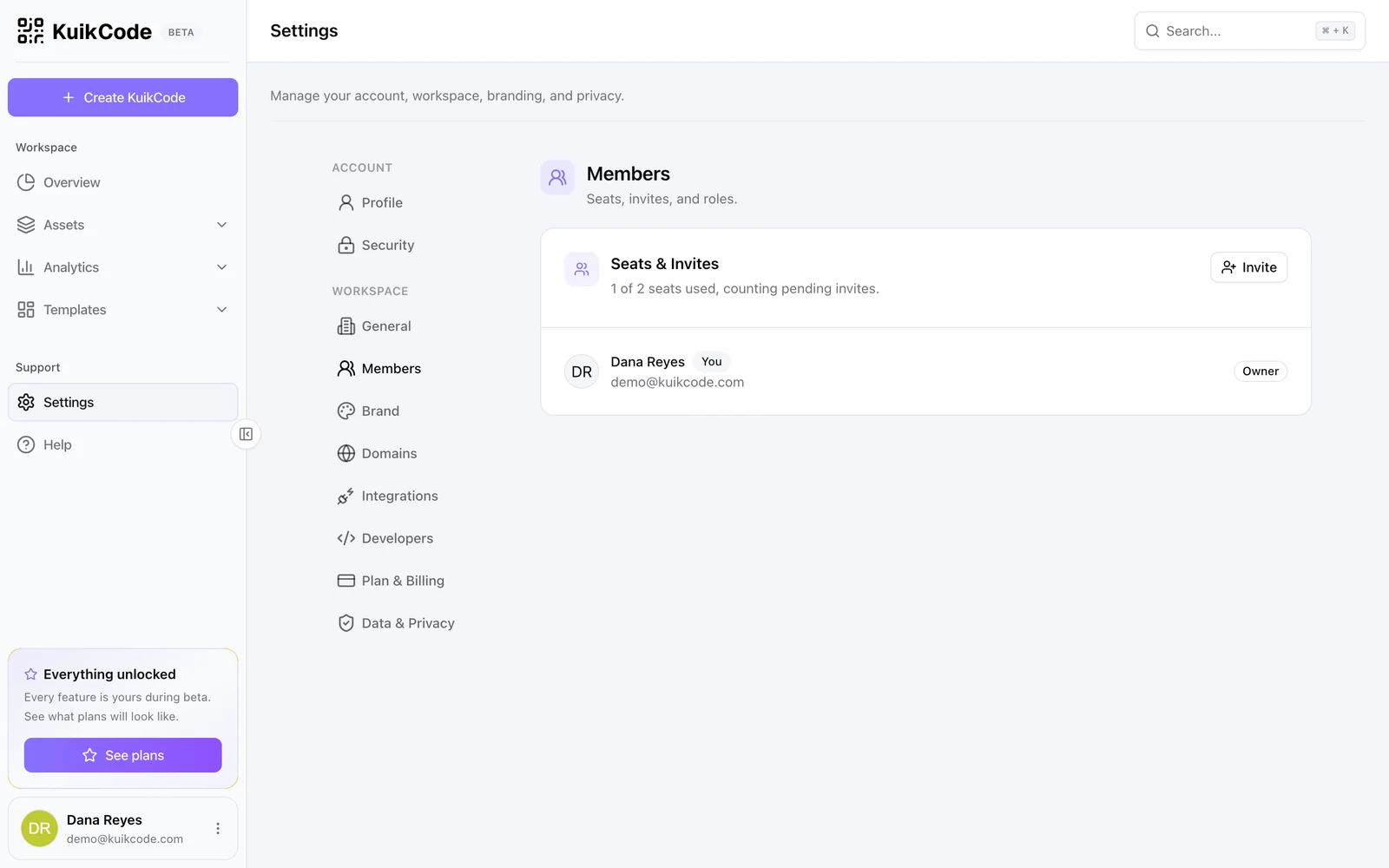
Seats & Invites shows how many seats the plan includes and how many are used, counting pending invites. Owners and admins Invite by email with a role, Member or Admin. The invitee gets a link to a page that names the workspace and the inviter and offers Accept invitation or Decline; accepting switches them into the workspace.
Roles: the Owner created the workspace and cannot be removed or demoted. Admins change workspace settings, invite and remove people, create API keys, manage domains and the Brand Kit. Members use everything else: codes, pages, analytics. Admins change roles from the row and remove a member with a confirmation; what the person created stays in the workspace. A removed member loses access on their next click, even with the app still open. API keys they created and apps they connected (AI assistants, Canva, Zapier) belong to the workspace and keep working, so the confirmation offers to revoke them too; that option is on by default. Pending invites can be revoked.
Seats per plan: one on Basic and Core, two on PRO, five on Business.
Single sign-on
Enterprise workspaces connect Okta, Microsoft Entra ID, Google Workspace or any SAML 2.0 identity provider here, verify their email domain, and can require single sign-on for everyone at it. Owners and admins set it up; members see whether it is on. See Single sign-on.
Brand
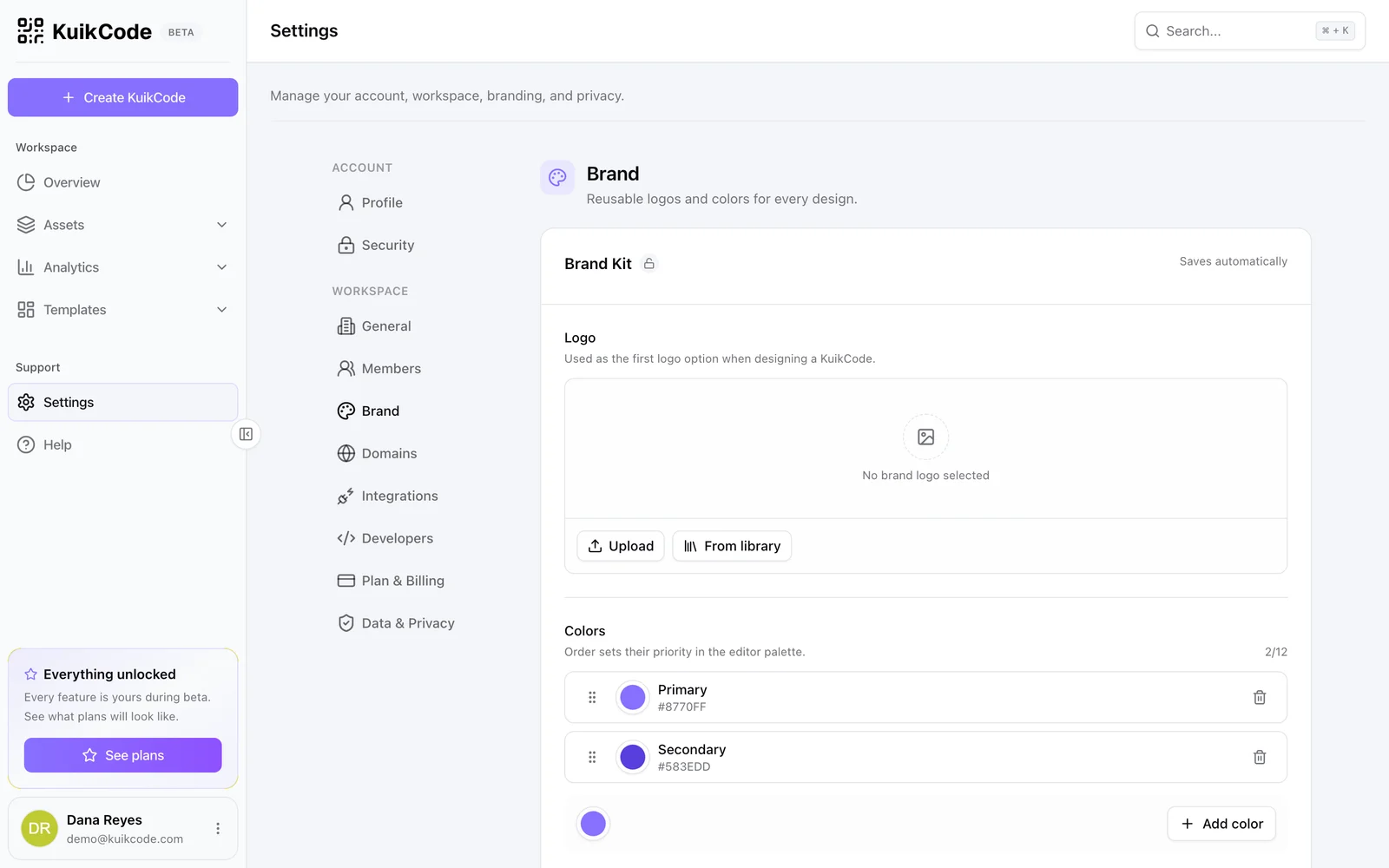
The Brand Kit (PRO) saves automatically:
- Logo: PNG, JPG or SVG, uploaded or picked From library. It becomes the first logo option when designing a code.
- Colors: up to twelve hex values, named Primary, Secondary, Accent and so on by position. Drag to reorder; the order sets their priority in the editor's color pickers.
- Fonts: a Title and a Text face. KuikPages inherit them unless a page picks its own, and the code editor lists the title face as Brand font.
See Designing a code for where each surfaces.
Domains
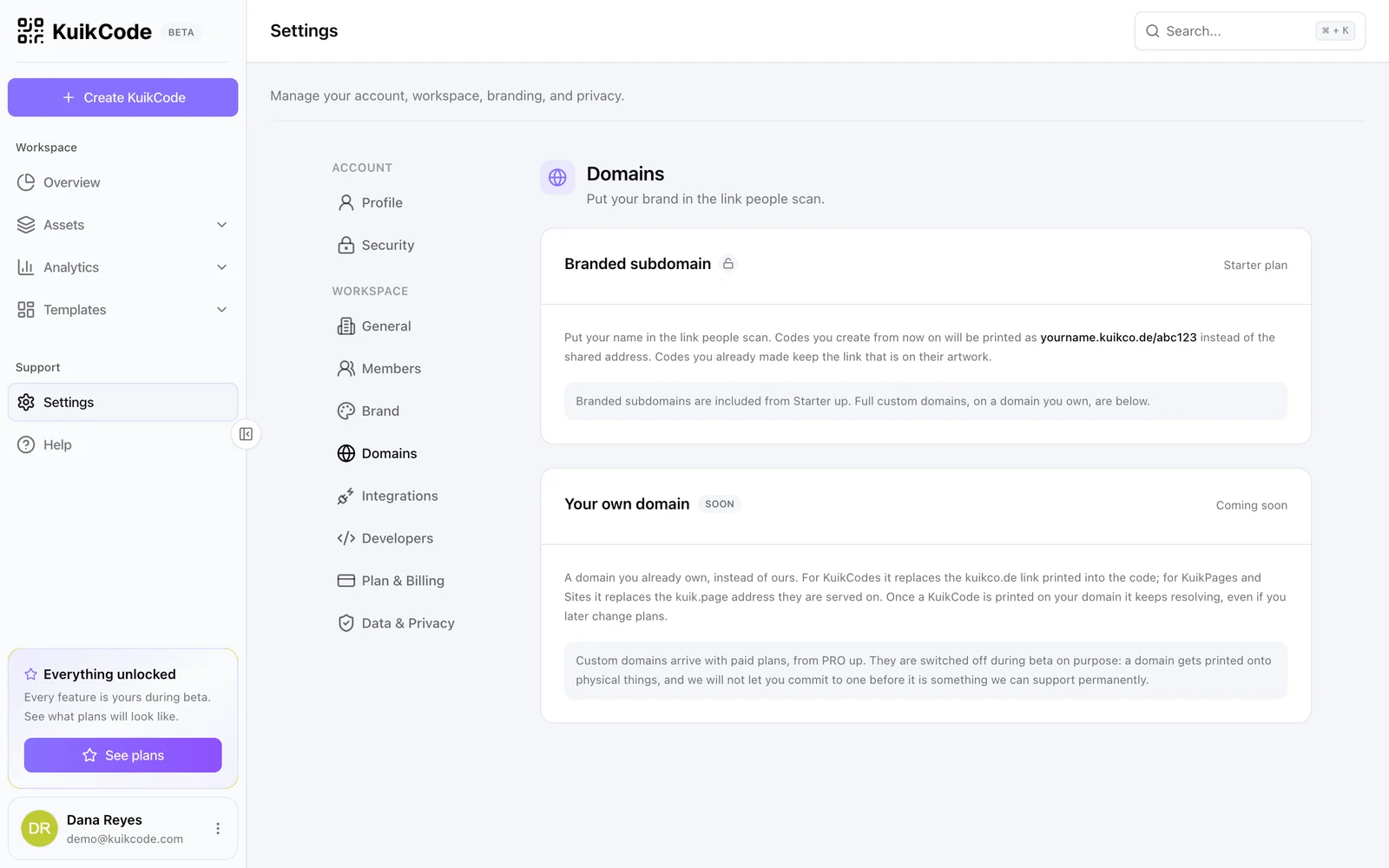
Two cards:
- Branded subdomain (PRO and up): claim
yourname.kuikco.deonce, three to thirty lowercase letters, numbers and hyphens, checked live against reserved and taken names. Codes you create from then on print with it; codes you already made keep the link on their artwork. Because the name gets printed, changing or removing it later is confirmed twice and retires the old name for good. - Your own domain (PRO and up): a hostname you own, Used for either KuikCodes (printed into new codes) or KuikPages & Sites (served on it, repointable later). After Connect domain the card lists the TXT and CNAME records to create and moves through Waiting for DNS, Issuing certificate and Live. PRO includes one, Business three. While a domain is waiting, the card says what we can see of your DNS and what to change, and keeps rechecking on its own; Check now looks again straight away. Timed out means Cloudflare stopped retrying: save the records, then disconnect the domain and add it again. A live domain can also report that forms and uploads on it are not protected yet, which means the bot check could not be turned on: the pages still load, and the card offers Try again.
Details and DNS steps in Branded scan links.
Integrations
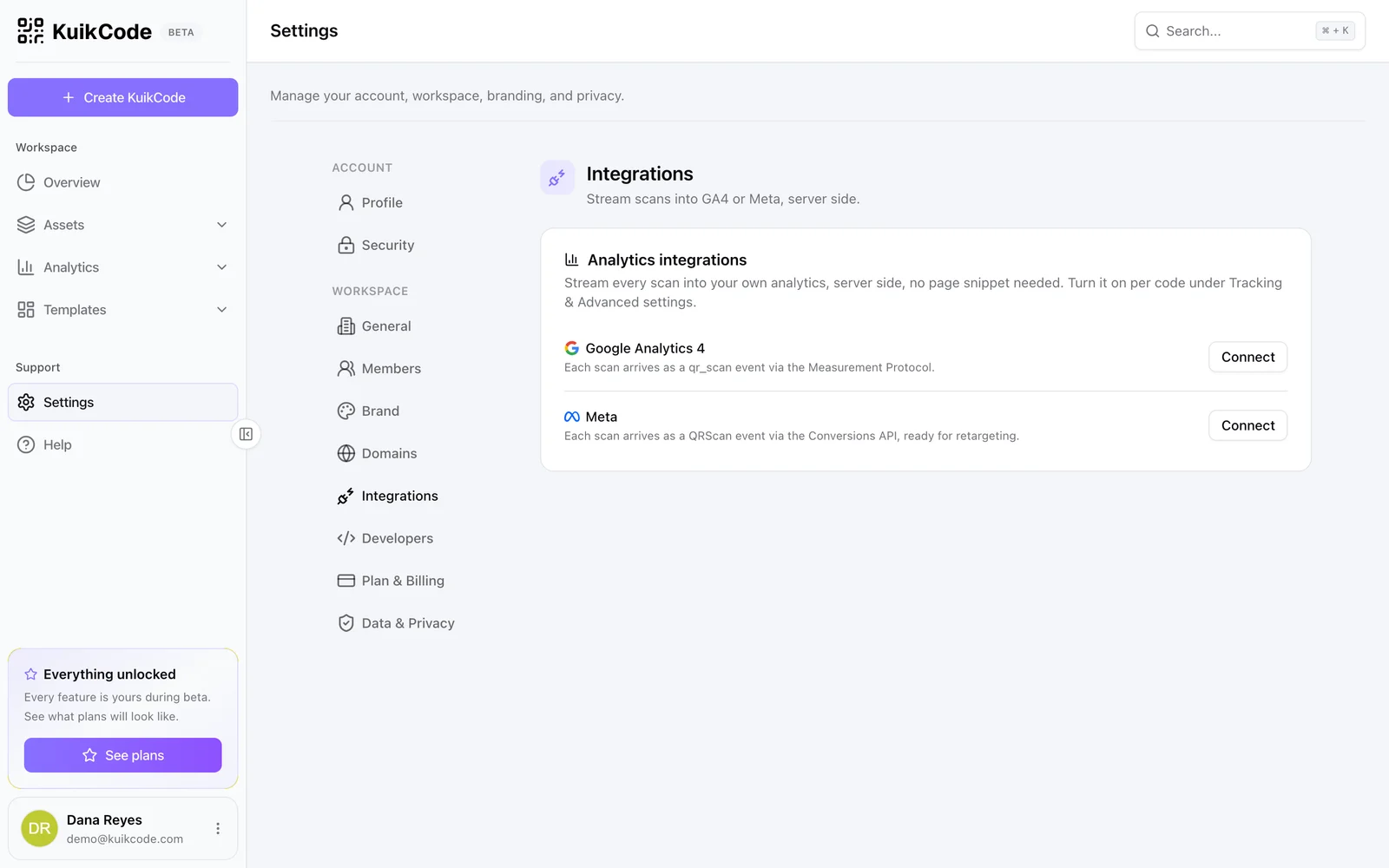
Analytics integrations: Connect Google Analytics 4 with a Measurement ID and an API secret (PRO), Meta with a Pixel ID and an optional Conversions API access token, or Google Ads with a conversion ID and an optional label (Business). Secrets are stored for sending only and never shown again. Then switch forwarding and retargeting on per code. See Analytics integrations and Retargeting pixels.
Zapier (PRO): what the KuikCode app for Zapier does, with Use KuikCode in Zapier to open it in Zapier's directory. You connect from Zapier itself; once connected, the card says so and the connection is listed with the other apps, where you can disconnect it. See KuikCode app for Zapier.
Developers
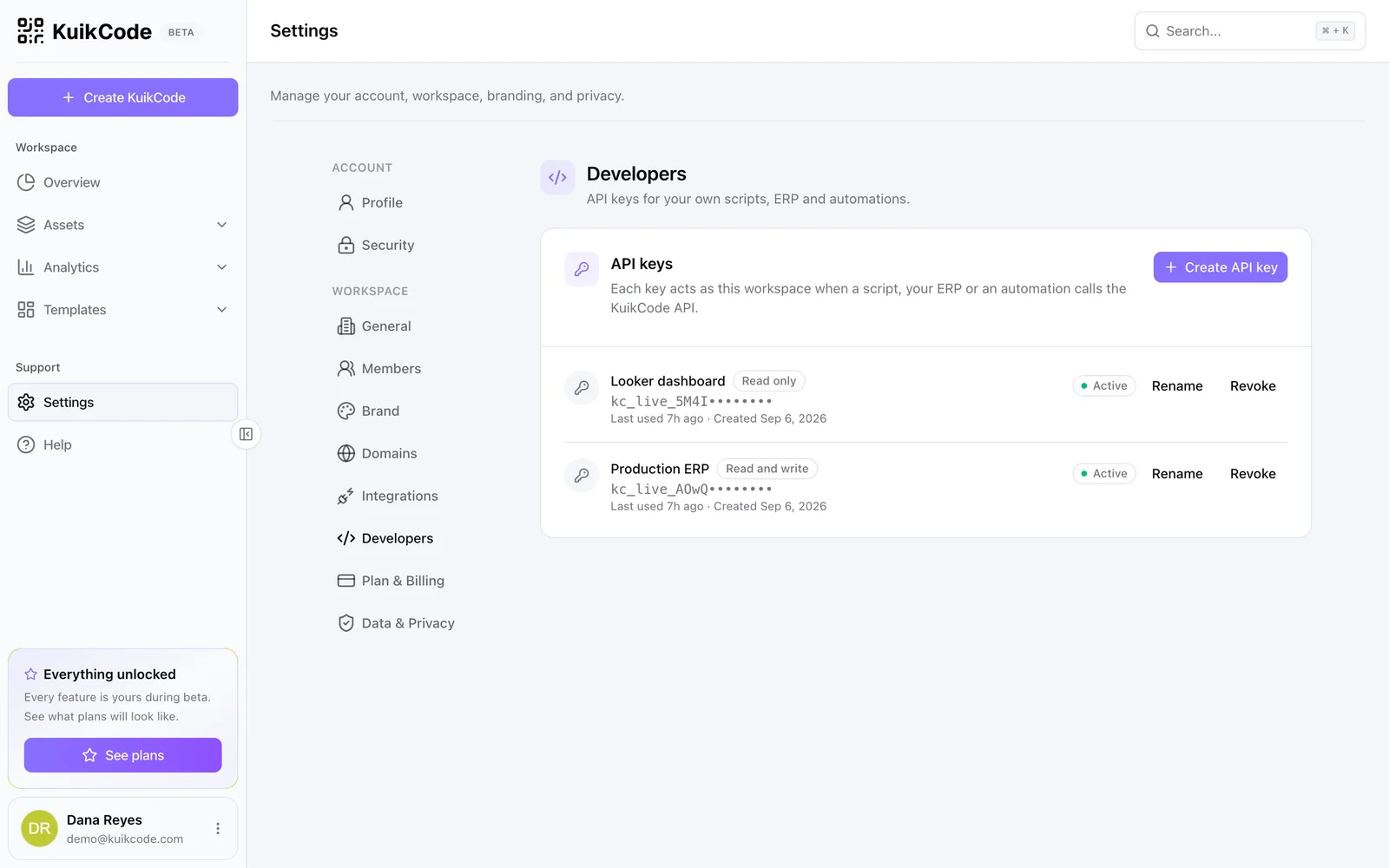
API keys (PRO): owners and admins create keys named after what will use them, with Read only or Read and write permissions and an optional expiry. The full key is shown once. Rows show the prefix, last use and status, with Rename and Revoke. See Authentication.
Plan & Billing
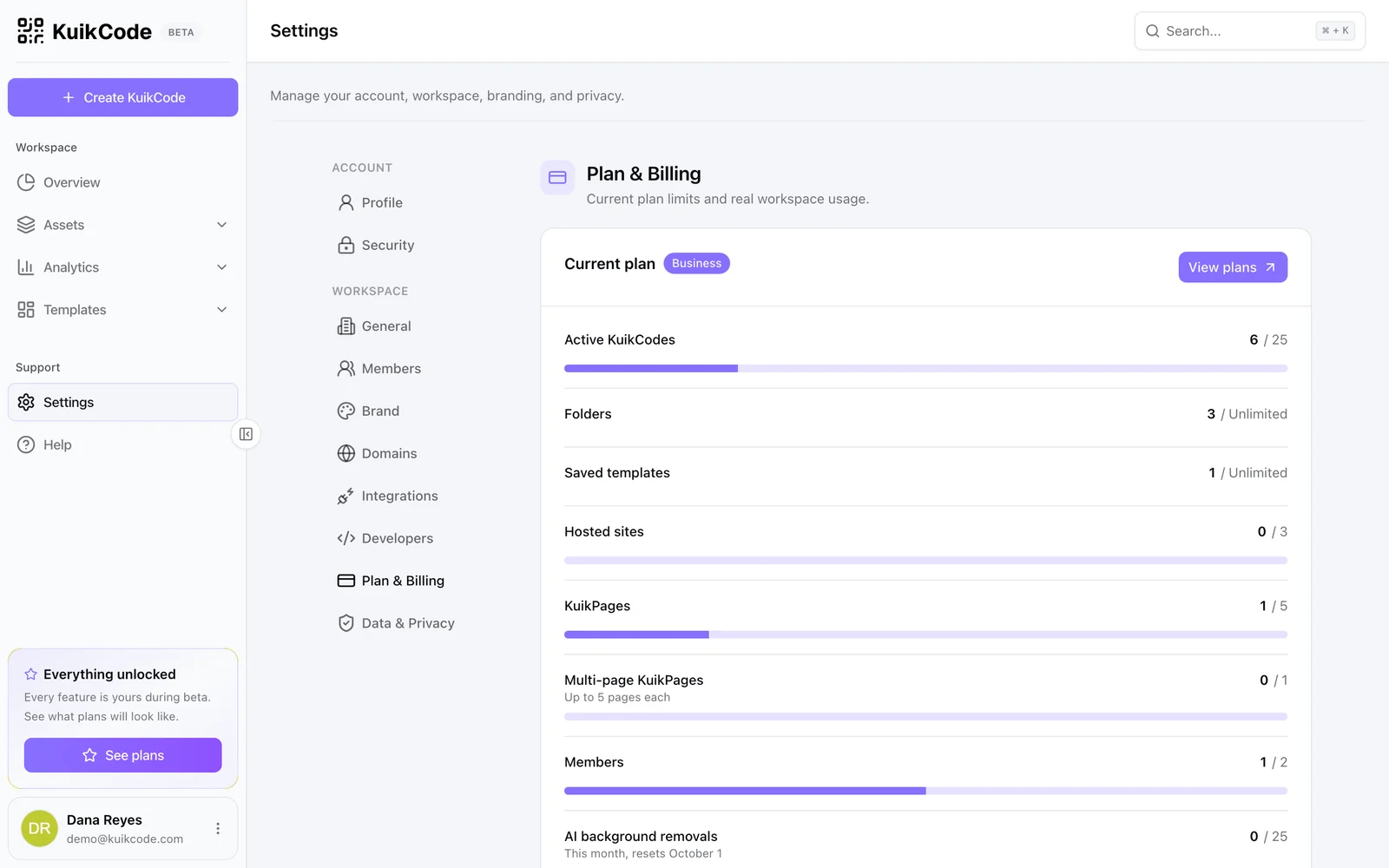
The Current plan with real usage against each limit as progress bars: active KuikCodes, folders, saved templates, hosted sites, KuikPages and multi-page KuikPages, members, AI background removals and AI generated images this month, API keys, library storage, and the branded subdomain and custom domains where the plan includes them. View plans opens the comparison; Manage billing opens the billing portal once a subscription exists. A cancelled or past-due plan is explained in a banner at the top. See Plans and limits.
Data & Privacy
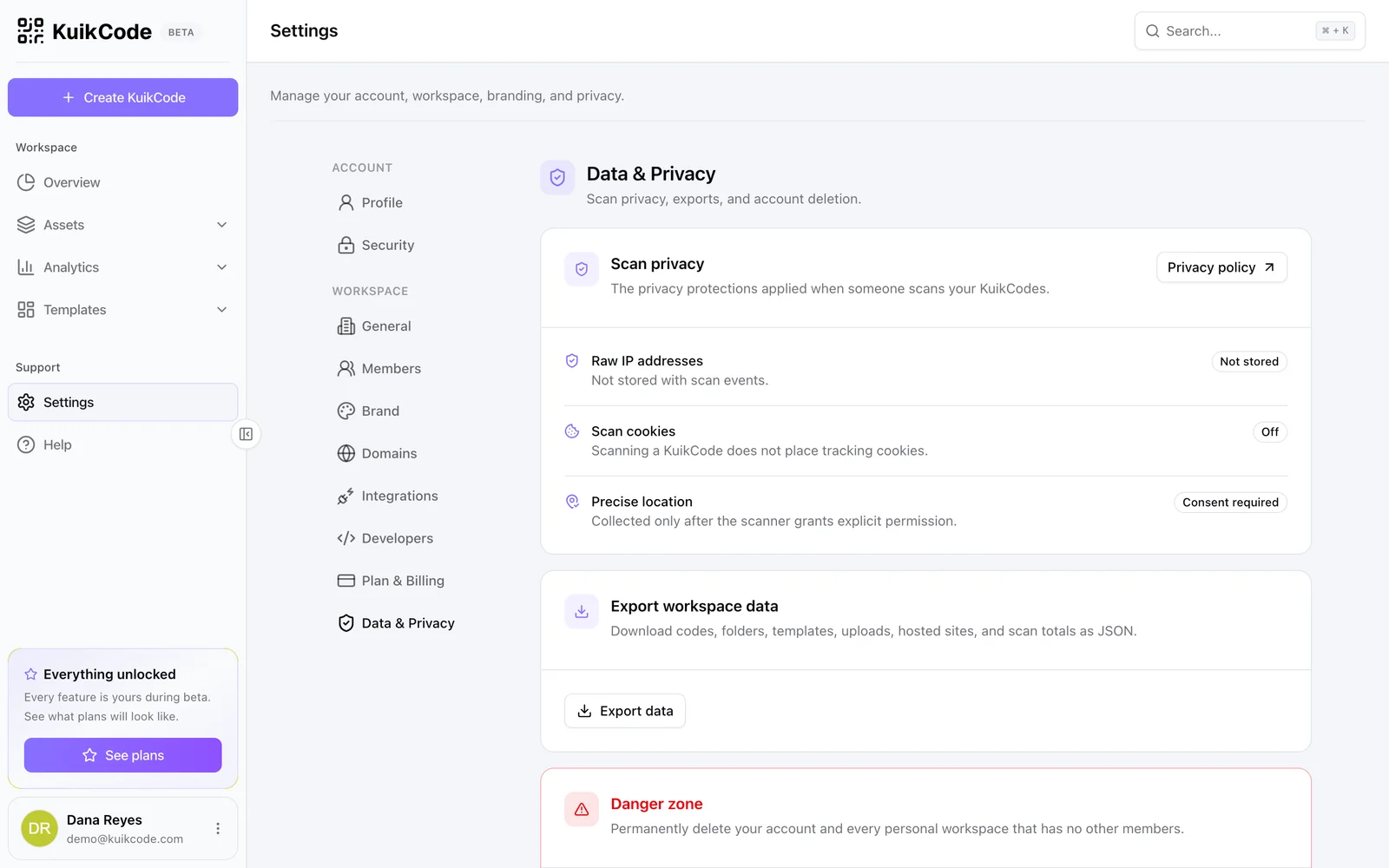
- Scan privacy restates the protections applied to every scan: raw IP addresses are not stored, scans set no tracking cookies, precise location needs the scanner's consent.
- Export workspace data downloads a JSON file with your account and workspace details, every code with its configuration and tags, scan totals per code, folders, templates, uploads with their addresses and hosted sites.
- Danger zone: Delete account and workspace removes your account and every personal workspace with no other members, after you type your email to confirm. Codes stop redirecting, sites go offline and a paid plan is canceled right away; a workspace with other members has to be handed over or emptied first.