

Create a KuikLink
Shorten a web address, name it, organize it and share it.
Create a short link from the KuikLinks list or from the Create button in the sidebar.
Start a link
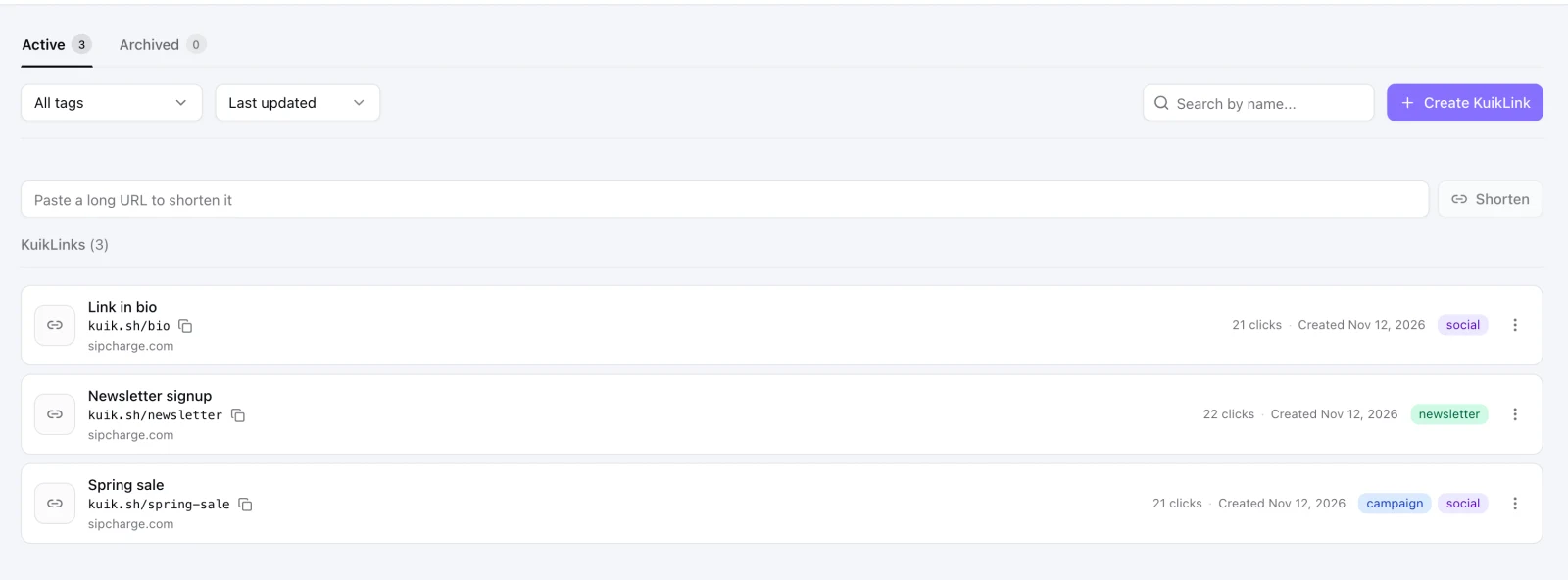
Open Assets, KuikLinks and click Create KuikLink, or use the + button in the sidebar and pick KuikLink. For a quick one, paste an address into Paste a long URL to shorten it on the list and click Shorten.
Add the destination
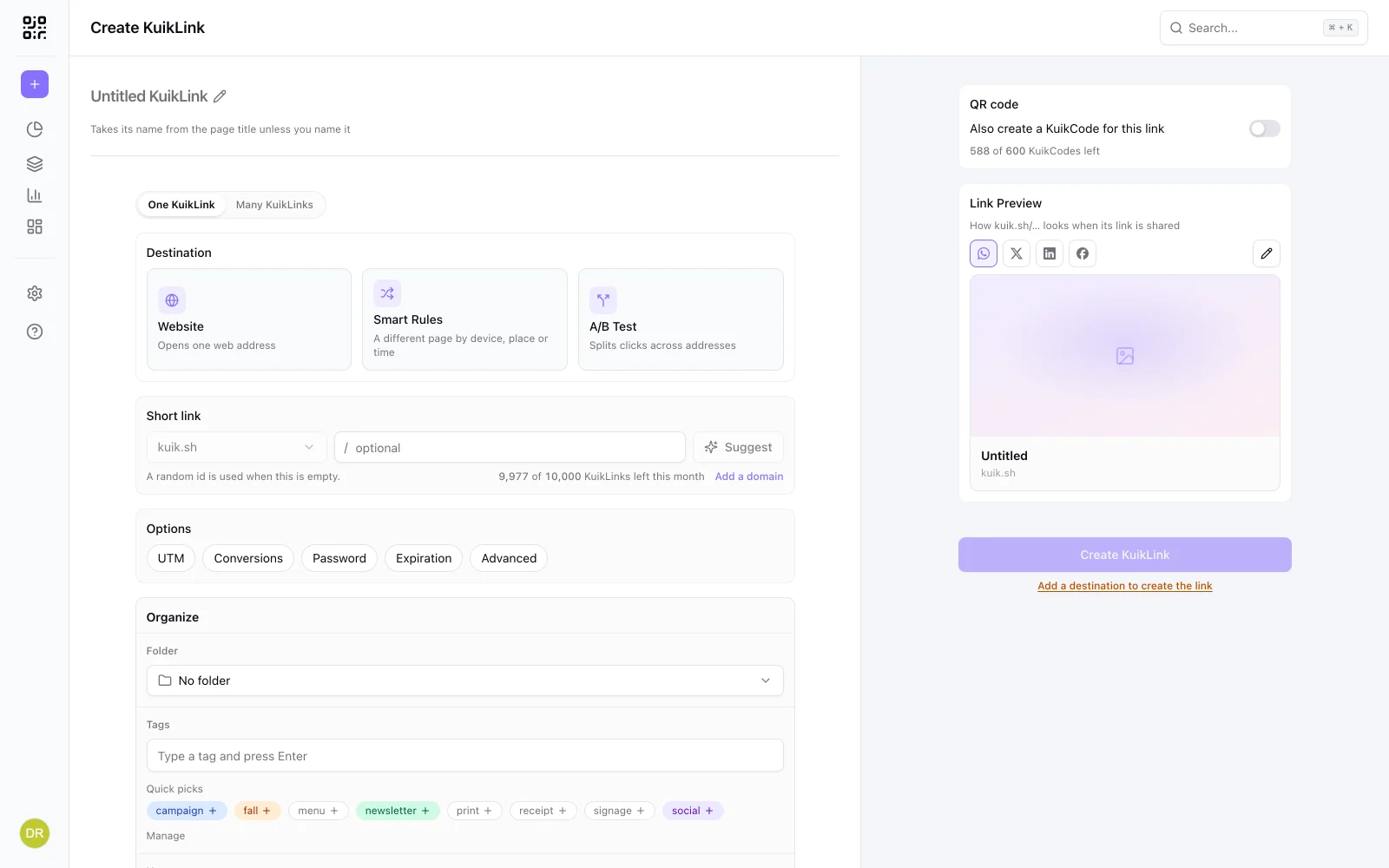
Under Destination, pick Website and paste the web address the link should open into Destination URL. KuikCode checks it and shows Checked when it is fine. To send people to different pages, pick Smart Rules or an A/B Test instead; Change brings the cards back. The link takes its name from the page's title unless you name it yourself with the pencil at the top.
Organize it
Under Organize, pick a Folder, add Tags and write a Note that only your team sees. Tags you used before appear as Quick picks, in the colors you gave them under Assets, Tags.
Create and share
Click Create KuikLink. A dialog shows the short link with a copy button. Turn on Also create a KuikCode for this link before creating if you want a QR code for it too.
Editing a link
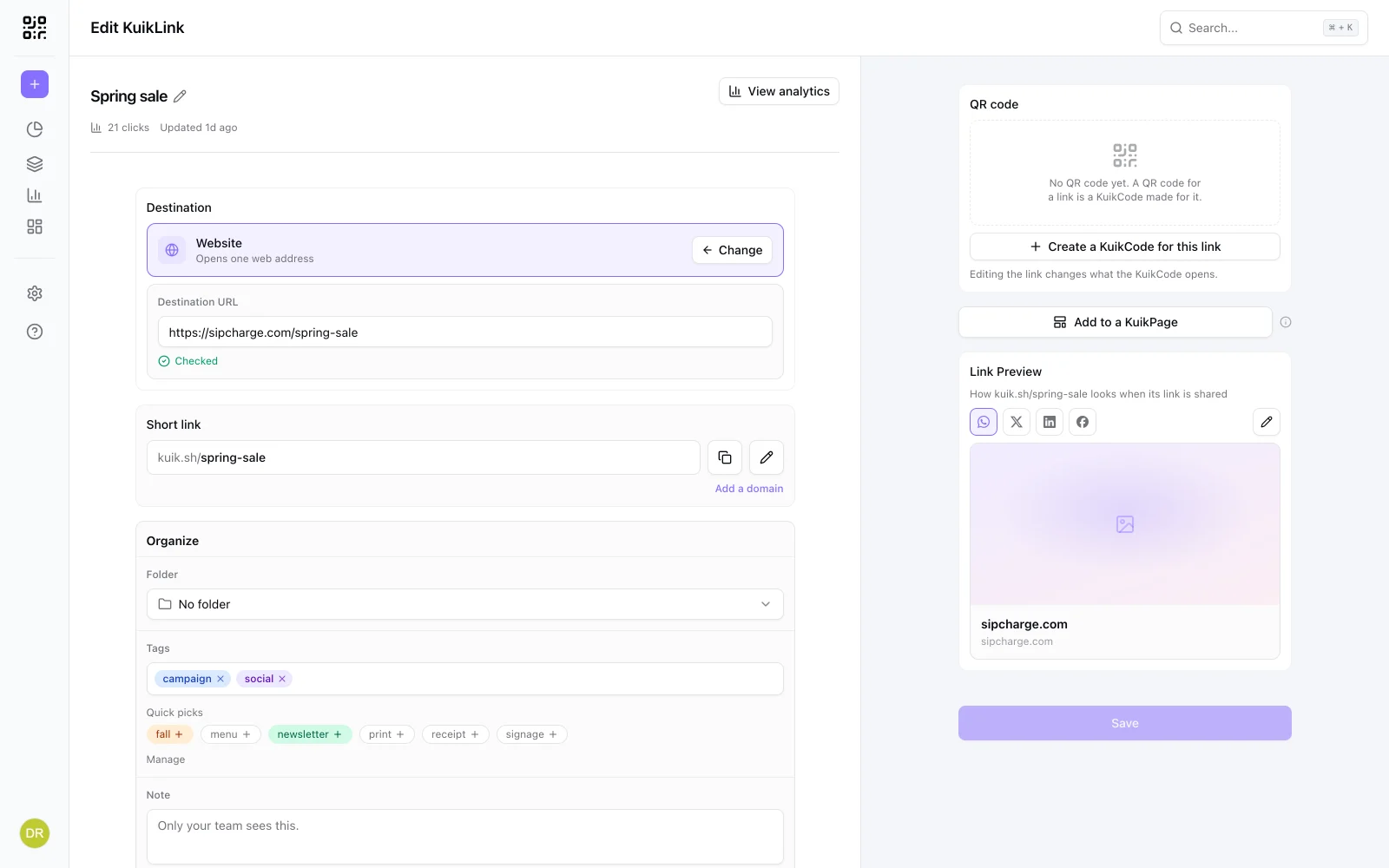
Click a link in the list to open it. Change the destination, the options or the tags and click Save; the same short link opens the new destination within a minute. View analytics opens the link's numbers.
Under Short link, the copy button copies the address and the pencil lets you change it. See Changing an ending.
Add a link to a KuikPage
Put a saved link on one of your KuikPages as a button, without opening the page editor. Open the link, click Add to a KuikPage under its KuikCode and pick a page.
- The button takes the link's name as its label and opens the short link, so every tap counts as a click and the button follows the link when you change its destination.
- It goes on the page's home, into its last list of link buttons when that list has room, or into a new list at the end.
- It is added to the page's draft. Publish the page to show it; the message after adding has a button that opens the page.
Archiving and deleting
The menu on each row has Archive and Delete. An archived link stops opening and can be restored. A deleted link is gone, and a link that still has a KuikCode made for it must have that code detached or deleted first.